


If you’ve ever wondered “does a stopped EC2 instance cost money” while staring at your AWS bill in confusion, you’re not alone. This is one of the most common questions from developers new to cloud computing—and the answer isn’t a simple yes or no. The truth is nuanced: stopping an EC2 instance eliminates compute charges but several other costs continue quietly accumulating in the background.
Understanding exactly what you’re paying for when instances sit idle is crucial for avoiding surprise bills and implementing effective cost optimization. This definitive guide answers every question about stopped EC2 instance charges, compares stopping versus terminating, and provides actionable strategies to minimize costs when you’re not actively using your cloud infrastructure.
What You ARE Charged for When an EC2 Instance Is Stopped
Understanding what AWS charges for stopped EC2 instances prevents billing surprises and helps you make informed decisions about when to stop versus terminate instances.
EBS Storage Volumes — The #1 Hidden Charge
EBS (Elastic Block Store) volumes are the persistent block storage drives attached to your EC2 instances, and they represent the largest ongoing cost for stopped instances.
EBS pricing (us-east-1 region):
- gp3 (General Purpose SSD): $0.08 per GB-month
- gp2 (Previous generation): $0.10 per GB-month
- io2 (Provisioned IOPS SSD): $0.125 per GB-month
- Magnetic (old standard): $0.05 per GB-month
Example calculation for a stopped instance:
- Instance: t3.medium with 30 GB gp3 root volume
- Compute charge when running: $0.0416/hour × 730 hours = $30.37/month
- Compute charge when stopped: $0
- EBS charge (running OR stopped): 30 GB × $0.08 = $2.40/month
The EBS charge continues identically whether the instance is running or stopped. This is because the storage volume physically exists on AWS’s storage infrastructure, maintaining your operating system, applications, and data ready for when you restart the instance.
Additional EBS costs that continue:
- EBS snapshots (backups): $0.05 per GB-month for stored snapshot data
- Provisioned IOPS (for io1/io2 volumes): Charges continue for provisioned IOPS even when instance is stopped
Critical insight: For short-term stops (hours to a few days), the EBS cost is negligible. For long-term stops (weeks to months), these charges compound. A stopped instance with 100 GB of EBS storage costs $8/month in storage fees indefinitely—$96/year for an instance you’re not even using.
Elastic IP Addresses — The Easily-Forgotten Fee
Elastic IP addresses are static public IPv4 addresses you can assign to EC2 instances. AWS’s pricing model encourages efficient IP address usage through a penalty for unused IPs.
Elastic IP pricing:
- Associated with a running instance: Free (no charge)
- Associated with a stopped instance: $0.005 per hour (~$3.65/month)
- Allocated but unassociated: $0.005 per hour (~$3.65/month)
When you stop an EC2 instance that has an Elastic IP attached, that IP becomes “associated with a stopped instance,” triggering the hourly charge. This is one of the most common sources of unexpected stopped EC2 instance charges.
Example scenario:
- You launch a web server with an Elastic IP for public access
- You stop the instance nights and weekends to save on compute costs
- Compute savings: $30.37/month → $12.15/month (60% reduction)
- New Elastic IP charge: $3.65/month (previously free when running)
- Net savings: $14.57/month instead of expected $18.22/month
How to avoid this charge:
- Disassociate and release Elastic IPs before stopping instances long-term
- Use dynamic public IPs if the IP address doesn’t need to remain constant
- Associate Elastic IPs with NAT Gateways or Load Balancers instead of directly with instances
- Monitor Elastic IP usage in the AWS Billing Console under “EC2-Other” costs
If you need the same IP address when restarting, the $3.65/month charge is acceptable. But for development instances stopped for weeks, releasing the IP saves money—you can allocate a new one when needed.
Reserved Instance Charges Don’t Stop
If you’ve purchased Reserved Instances (RIs) or AWS Savings Plans to reduce EC2 costs, stopping instances doesn’t pause those commitments.
Reserved Instance billing for stopped instances:
- Your Reserved Instance hourly charge continues regardless of instance state
- Stopped, running, or terminated—you pay the RI commitment for the full term
- The RI discount applies only when a matching instance is actually running
Example:
- You purchased a 1-year Standard Reserved Instance for an m5.large at $0.050/hour (normally $0.096/hour On-Demand)
- You stop the instance for maintenance for one week (168 hours)
- RI charge during that week: 168 hours × $0.050 = $8.40 (no change)
- Compute charge for the stopped instance: $0 (but you’re still paying the RI commitment)
This creates a frustrating situation: you’re paying for compute capacity you’re not using. The RI discount only provides value when instances are actually running.
How to mitigate:
- Don’t stop instances covered by Reserved Instances—keep them running or terminate and launch elsewhere
- Use Convertible RIs which can be exchanged for different instance types if needs change
- Carefully calculate RI commitments based on consistent baseline usage, not total capacity
- Layer On-Demand and RIs: Use RIs for always-on workloads, On-Demand for variable capacity
For more on optimizing commitment-based pricing, see our guide on EC2 Savings Plans.
Data Transfer Fees (Already in Flight)
While stopping an instance prevents new data transfer charges, any data transfer fees already incurred before stopping will appear on your bill.
Data transfer scenarios:
- Outbound internet traffic before stopping: $0.09 per GB (after first 100 GB free)
- Cross-region data transfer before stopping: $0.02 per GB
- These charges are already finalized when the transfer completes
Stopping the instance prevents future data transfer costs, but doesn’t eliminate charges for traffic that occurred while the instance was running. This isn’t technically a “charge for stopped instances,” but it can create confusion when reviewing bills if you stopped an instance mid-month.
Stopped vs. Terminated: What’s the Real Difference?
Understanding EC2 stopped vs terminated billing difference is critical for making informed decisions about instance management.
EC2 Stop — Instance Paused, Data Preserved
Stopping an EC2 instance puts it into a paused state where:
✅ Data is preserved: All EBS volumes remain intact with your OS, applications, and data ✅ Configuration retained: Instance metadata, security groups, IAM roles stay configured ✅ Private IP maintained: The instance keeps its private IP address in your VPC ✅ Can be restarted: Resume the instance anytime, booting to exactly the previous state ❌ EBS charges continue: Storage costs persist indefinitely ❌ Elastic IP charges begin: Unassociated IPs start costing $3.65/month ❌ Public IP lost: Dynamic public IPs are released (unless using Elastic IP)
Instance Store volumes are wiped: Any data on ephemeral instance store volumes (not EBS) is permanently lost when stopping.
When to stop:
- Short-term pause (hours to days) while maintaining exact state
- Development instances used intermittently
- Scheduled workloads that run periodically
- Testing environments between test cycles
- When you need to preserve configuration and data but don’t need compute resources
EC2 Terminate — Instance Deleted, Data Lost
Terminating an EC2 instance permanently deletes it:
✅ All charges stop: No compute, no EBS (if Delete on Termination enabled), no costs ✅ Resources released: AWS reclaims all allocated resources ✅ Frees up limits: Instance count limits are freed for new launches ❌ Data is lost: All EBS volumes are deleted (unless Delete on Termination is disabled) ❌ Configuration lost: All instance metadata, IPs, and settings are gone ❌ Cannot be restarted: The instance is permanently deleted
When to terminate:
- Long-term non-use (weeks to months) where ongoing EBS costs aren’t justified
- Temporary instances for one-time tasks (CI/CD builds, batch jobs)
- Test instances after completing testing
- When migrating to different instance types or architectures
- Cleaning up unused development environments
Before terminating, create an Amazon Machine Image (AMI) to preserve your instance configuration for future recreation.
When Should You Stop vs. Terminate?
Use this decision matrix:
| Scenario | Recommendation | Reasoning |
| Unused for hours to 2-3 days | Stop | EBS cost negligible over short period |
| Unused for 1-2 weeks | Stop if frequently reused, Terminate otherwise | Consider ongoing EBS cost vs. recreation effort |
| Unused for 1+ months | Terminate (create AMI first) | Ongoing EBS charges exceed recreation cost |
| Development – active project | Stop nights/weekends | Quick restart needed frequently |
| Development – completed project | Terminate (keep AMI) | No anticipated restart date |
| Production – maintenance window | Stop | Data preservation critical |
| CI/CD build server | Terminate after build | Ephemeral workload, no state needed |
| Database instance | Stop rarely (snapshot + terminate preferred) | Data integrity risk; use RDS for production |
Cost threshold calculation:
- m5.large with 100 GB gp3: $8/month stopped
- Recreating from AMI: ~15 minutes of work
- Break-even: ~2 months of stopped time = cost of recreation
If you won’t need the instance for 2+ months, terminate and save the $16+. If you’ll need it within weeks, stop for convenience.
Stop vs. Terminate Comparison Table
| Aspect | Stop | Terminate |
| Compute charge | $0 | $0 |
| EBS storage | ✅ Continues charging | ❌ Stops (if Delete on Termination enabled) |
| Elastic IP | ✅ Charges $3.65/month | ❌ Released (no charge) |
| Data preservation | ✅ All EBS data intact | ❌ All data deleted |
| Restart capability | ✅ Can restart anytime | ❌ Cannot restart (permanently deleted) |
| Configuration retained | ✅ Yes | ❌ No |
| Private IP | ✅ Maintained | ❌ Released |
| Instance store data | ❌ Wiped | ❌ Wiped |
| Best for | Short-term non-use, preserving state | Long-term non-use, one-time tasks |
EC2 Instance States Explained (All 6 States)
AWS EC2 instances transition through six distinct states during their lifecycle, each with different billing implications.
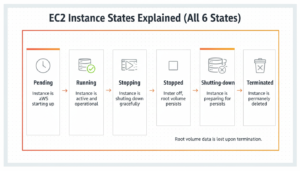
Pending
The instance is launching but not yet running. AWS is provisioning compute resources, attaching storage volumes, and performing initialization.
Billing: Per-second billing begins as soon as the instance enters the pending state, though it typically transitions to running within seconds.
Running
The instance is fully operational and available for use. This is the normal active state where your applications execute.
Billing: Full compute charges apply at the instance type’s hourly rate, billed per second (minimum 60 seconds).
Stopping
The instance is in the process of stopping. AWS is shutting down the operating system gracefully, flushing buffers, and releasing compute resources.
Billing: Compute charges continue during the stopping transition until the instance reaches the stopped state (typically 30-60 seconds).
Stopped
The instance is powered off but data is preserved. This is the state we’ve been discussing throughout this article.
Billing: No compute charges. EBS, Elastic IP (if unassociated), and Reserved Instance charges continue.
Shutting Down
The instance is in the process of terminating. AWS is releasing all resources and preparing for permanent deletion.
Billing: Compute charges continue during shutdown transition until terminated state is reached (typically 30-60 seconds).
Terminated
The instance is permanently deleted. All resources are released and the instance ID becomes inactive.
Billing: All charges stop, including EBS volumes (if Delete on Termination was enabled). The instance cannot be restarted.
State transitions diagram:
Launch → Pending → Running → Stopping → Stopped → [can restart to Running]
↓
Shutting Down → Terminated [permanent]
How Much Does a Stopped EC2 Instance Actually Cost?
Let’s calculate the exact monthly cost of stopped instances in real-world scenarios.
EBS Cost Calculation Example
Scenario 1: Small web server (t3.micro)
- Root volume: 8 GB gp3 SSD
- EBS cost: 8 GB × $0.08 = $0.64/month
Scenario 2: Development application server (t3.medium)
- Root volume: 30 GB gp3 SSD
- EBS cost: 30 GB × $0.08 = $2.40/month
Scenario 3: Database instance (m5.large)
- Root volume: 30 GB gp3
- Data volume: 500 GB gp3
- EBS cost: 530 GB × $0.08 = $42.40/month
Scenario 4: High-performance application (c5.4xlarge)
- Root volume: 50 GB gp3
- Data volume: 1 TB io2 Provisioned IOPS (10,000 IOPS)
- EBS cost:
- Storage: 1,050 GB × $0.125 = $131.25/month
- Provisioned IOPS: 10,000 × $0.065 = $650/month
- Total: $781.25/month
High-performance storage with provisioned IOPS can cost more stopped than many instances cost running!
Elastic IP Cost Calculation Example
Scenario 1: Single web server with Elastic IP
- Instances: 1 stopped instance with Elastic IP attached
- Elastic IP cost: $3.65/month
Scenario 2: Multiple development instances
- Instances: 5 development instances, all stopped with Elastic IPs
- Elastic IP cost: 5 × $3.65 = $18.25/month
Scenario 3: No Elastic IP (released when stopped)
- Elastic IP cost: $0/month
Monthly Cost Estimate for a Stopped t3.medium
t3.medium development instance (typical configuration):
| Cost Component | Running | Stopped | Savings |
| Compute (instance) | $30.37/month | $0 | $30.37 |
| EBS (30 GB gp3) | $2.40/month | $2.40/month | $0 |
| Elastic IP (attached) | $0 | $3.65/month | -$3.65 |
| Total | $32.77/month | $6.05/month | $26.72 |
Net savings: 82% reduction by stopping, but not zero cost.
If Elastic IP released before stopping:
- Stopped cost: $2.40/month
- Net savings: 93% reduction
Key insight: The t3.medium compute charge ($30.37) dominates the bill when running, but stopping eliminates only that component. A stopped instance still costs $2.40-$6.05/month depending on Elastic IP usage—not free, but much cheaper than running.
How to Stop Getting Charged for Unused EC2 Instances
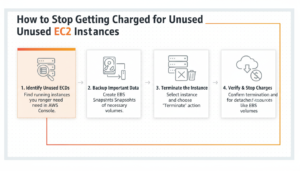
Practical strategies to minimize AWS charges for idle EC2 instances and eliminate waste.
When to Terminate Instead of Stop
Terminate instances when:
- No anticipated restart date: Development projects completed, POCs finished, temporary testing done
- Stopped for 2+ months: Ongoing EBS costs ($8/month for 100 GB) exceed recreation effort
- Configuration can be recreated: Standard AMI + simple configuration management (Terraform, CloudFormation)
- One-time workloads: CI/CD build servers, batch processing jobs, data migration tasks
How to safely terminate:
- Create an AMI (Amazon Machine Image) to preserve configuration
- Back up data to S3 or take final EBS snapshots
- Document configuration in infrastructure-as-code if not already managed
- Terminate the instance through AWS console or CLI
- Verify EBS volumes deleted (check “Delete on Termination” was enabled)
Cost comparison over 6 months:
- Keep stopped: 6 months × $8/month EBS = $48
- Terminate + AMI storage: 10 GB AMI × $0.05/GB × 6 months = $3
- Savings: $45 by terminating vs. keeping stopped
Create an AMI Before Terminating
An AMI (Amazon Machine Image) is a template containing your instance’s root volume snapshot, configuration, and launch permissions. Creating an AMI before terminating preserves everything needed to recreate the instance later.
How to create an AMI:
- Navigate to EC2 Console → Instances
- Select your instance → Actions → Image and templates → Create image
- Name: “web-server-baseline-2026-02” (use clear naming conventions)
- Description: Document purpose, configuration details, dependencies
- Enable “No reboot” if uptime is critical (otherwise leave unchecked for consistency)
- Click “Create image”
AMI storage cost:
- Same as EBS snapshots: $0.05 per GB-month
- Typical AMI: 10-30 GB = $0.50-$1.50/month
- Much cheaper than keeping instance stopped with full EBS volumes
Recreating from AMI:
- EC2 Console → AMIs → Select your AMI → Launch instance from AMI
- Choose instance type (can differ from original)
- Configure network, security groups, storage
- Launch instance (typically running within 2-3 minutes)
For detailed guidance on EC2 pricing and optimization, see our comprehensive guide on navigating EC2 instance costs.
Schedule Automatic Stop/Start with AWS Instance Scheduler
AWS Instance Scheduler is an official AWS solution that automatically stops and starts EC2 instances based on custom schedules, perfect for development environments.
Use cases:
- Stop development instances at 6 PM, start at 8 AM weekdays (save 58% of compute)
- Stop all non-production on weekends (save additional 29%)
- Custom schedules per team or project
Implementation:
- Deploy Instance Scheduler CloudFormation template (provided by AWS)
- Define schedules: “office-hours” (8 AM-6 PM weekdays), “weekdays-only”, etc.
- Tag instances with schedule: Schedule: office-hours
- Scheduler Lambda functions automatically stop/start based on tags
Cost savings example (10 × t3.medium development instances):
- Always-on: 10 × $30.37 = $303.70/month
- Office hours only (50 hours/week = 30% utilization): $303.70 × 0.30 = $91.11/month
- EBS continues: 10 × $2.40 = $24/month
- Total: $115.11/month vs. $303.70 (62% savings)
Third-party tools like ProsperOps and CloudBurn also offer scheduling features with more advanced analytics.
EC2 Hibernation — A Third Option Between Stop and Terminate
EC2 Hibernation is a lesser-known feature that provides a middle ground between stopping and running instances.
What Is EC2 Hibernation?
Hibernation saves the contents of instance memory (RAM) to the root EBS volume and then stops the instance. When you start a hibernated instance, it:
- Restores RAM contents from EBS
- Resumes exactly where it left off—open applications, active processes, cached data
- Bypasses the full boot sequence
- Typically resumes in under 2 minutes (vs. 5-10 minutes for normal stop/start with app initialization)
How it differs from normal stop:
- Stop: Shuts down OS, clears RAM, next start requires full boot and app initialization
- Hibernate: Preserves RAM state, next start resumes in-progress work
Costs During Hibernation
Hibernation billing:
- Compute charge: $0 (same as stopped)
- EBS storage: Continues (same as stopped)
- Additional EBS for RAM storage: Charges for the RAM data saved to EBS
Cost calculation:
- Instance: m5.large (2 vCPU, 8 GB RAM)
- Root volume: 30 GB gp3
- RAM dump: 8 GB saved to EBS when hibernating
- Total EBS during hibernation: (30 GB + 8 GB) × $0.08 = $3.04/month
- Normal stopped cost: 30 GB × $0.08 = $2.40/month
- Additional cost: $0.64/month for hibernation RAM preservation
The additional cost is small but exists. Hibernation costs slightly more than normal stopping.
When Hibernation Makes Sense
Use hibernation when:
- Long-running processes: Data analysis, machine learning training, or compilation that takes hours to initialize
- Cached data preservation: Applications with warm caches that take 30+ minutes to rebuild
- Session persistence: Long-running user sessions or in-memory state you don’t want to lose
- Rapid restart required: Need to resume quickly without full application initialization
Don’t use hibernation when:
- Normal stop/start is sufficient (most cases)
- Instance has large RAM (100+ GB) making hibernation slow and expensive
- Root volume doesn’t have space for RAM dump
- You’re running instance store volumes (ephemeral—not compatible with hibernation)
Hibernation limitations:
- Maximum hibernation duration: 60 days
- Root volume must be EBS (not instance store)
- Not supported on all instance types (mainly current-generation instances)
- RAM must fit on root EBS volume
For most use cases, normal stopping is simpler and more cost-effective. Hibernation is a specialized feature for specific workload requirements.
Best Practices for Managing EC2 Stopped Instances
Implement these practices to maintain visibility and control over stopped EC2 instance billing.
Tag Instances with Owner and Purpose
Resource tagging is the foundation of cost management and accountability in AWS.
Essential tags for all EC2 instances:
| Tag Key | Example Values | Purpose |
| Name | web-server-prod-01 | Human-readable identification |
| Owner | [email protected] | Accountability and contact |
| Environment | production, staging, development | Cost allocation |
| Project | mobile-app-v2 | Budget tracking |
| CostCenter | engineering, marketing | Chargeback |
| Expiration | 2026-03-31 | Automatic cleanup trigger |
| Purpose | demo, testing, production | Lifecycle management |
Tag enforcement:
- Create IAM policies requiring tags at instance launch
- Use AWS Config rules to detect untagged resources
- Generate monthly reports of resources by owner and expiration
- Automate termination of expired instances using Lambda + CloudWatch Events
Cost allocation tags:
- Activate tags as “Cost Allocation Tags” in the Billing Console
- View costs grouped by Environment, Project, Owner in Cost Explorer
- Create budgets per team or project for accountability
Set AWS Budgets for Stopped-State Costs
AWS Budgets can alert you specifically to stopped instance costs before they accumulate unexpectedly.
Create a stopped instance budget:
- Navigate to AWS Budgets → Create Budget
- Select “Cost budget”
- Filter:
- Service: EC2
- Usage Type: EBSOptimized:VolumeUsage, DataTransfer (stopped instance costs)
- Exclude: BoxUsage (actual instance compute—you only want storage/IP costs)
- Set monthly budget: $50 (adjust based on expected stopped costs)
- Configure alerts:
- 80% threshold ($40)
- 100% threshold ($50)
- Forecasted to exceed
- Add email notifications
Sample alert workflow:
- Receive alert: “Stopped EC2 costs at 80% of $50 budget”
- Review Cost Explorer: Filter EC2-EBS costs by instance
- Identify instances stopped longest
- Decision: Terminate instances stopped >2 months, create AMIs for preservation
Frequently Asked Questions (FAQ)
1. Does stopping an EC2 instance completely stop all charges?
No. Stopping stops compute charges (vCPU & memory), but you still pay for attached EBS storage, Elastic IPs, and snapshots. Terminating the instance is required to eliminate all costs.
2. When should I stop vs terminate an EC2 instance?
Stop when you want to preserve data and configuration for short-term breaks (hours to weeks). Terminate when the instance is no longer needed or for long-term breaks to save all ongoing costs.
3. Can I schedule EC2 instances to stop automatically?
Yes. Use AWS Instance Scheduler, CloudWatch + Lambda, Systems Manager, or third-party tools to stop/start instances on a schedule, saving up to 60–70% for dev/test environments.
4. What is EC2 Hibernation and how is it different from stopping?
Hibernation saves the instance’s RAM to EBS, allowing it to resume with all in-memory state intact. It costs slightly more than stopping due to extra storage, but is ideal when you need a fast restart with active processes preserved.
5. How can I find stopped or unused EC2 instances?
Use EC2 Console filters, Trusted Advisor, Cost Explorer, AWS Config rules, or Cost & Usage Reports to identify stopped instances and monitor storage or IP costs. Combine with automated alerts to avoid unnecessary charges.
Conclusion
Does a stopped EC2 instance cost money? Yes—but now you understand exactly what those charges are and how to control them. Stopping an instance eliminates the compute charges that typically represent 80–95% of your bill, but EBS storage volumes, Elastic IP addresses, and Reserved Instance commitments continue generating costs indefinitely. For a typical development instance, stopping reduces costs from $30–70/month to $2–10/month—significant savings for short-term non-use. At GoCloud, we recommend following these best practices to maximize efficiency and minimize waste.
The key to cost-effective EC2 management is matching instance lifecycle decisions to usage patterns: stop instances for short breaks (hours to days) when quick restart with preserved state is valuable, terminate instances for long breaks (weeks to months) after creating AMIs to eliminate ongoing EBS charges, and schedule non-production instances to automatically stop during nights and weekends for consistent 60–70% compute savings all with guidance and insights from GoCloud.