


What is an EC2 Instance?
Amazon EC2 is the backbone of AWS — the virtual machine service that powers everything from early-stage startup MVPs to Netflix’s global streaming infrastructure. Yet despite its central role in cloud computing, many developers still underutilize it, over-provision it, or choose the wrong EC2 instance type for their workload — costing thousands of dollars in unnecessary cloud spend every month.
This guide answers every foundational question: what is an EC2 instance in AWS, how it works under the hood, which instance type is right for your workload, how pricing models compare, and when you should choose EC2 over serverless alternatives like AWS Lambda serverless compute or running containers with AWS Fargate.
By the end, you’ll have the knowledge to provision, right-size, secure, and optimize EC2 instances with confidence — whether you’re deploying your first web server or architecting a multi-region enterprise platform.
Is EC2 a Virtual Machine?
Yes — an EC2 instance is a virtual machine (VM) running in the AWS cloud. “EC2” stands for Amazon Elastic Compute Cloud. The “elastic” in the name is deliberate: instances can be resized, scaled, and terminated on demand, giving you compute capacity that expands or contracts to match your exact requirements.
Each EC2 instance runs on AWS’s Nitro System — a purpose-built hypervisor that offloads virtualization functions to dedicated hardware, delivering near-bare-metal performance for virtualized workloads. This means you get the flexibility of virtual machines with performance approaching physical hardware.
What is the Difference Between EC2 and a Physical Server?
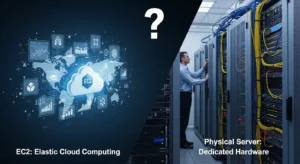
| Amazon EC2 | Physical Server | |
| Provisioning Time | Seconds | Days to weeks |
| Hardware Management | AWS manages | Your team manages |
| Scalability | Instant (API-driven) | Manual procurement |
| Upfront Cost | $0 (On-Demand) | High capital expense |
| Location | AWS data center (global) | Your data center |
| Redundancy | Built-in (multi-AZ) | Manual configuration |
How Amazon EC2 Works: Core Concepts Explained
Understanding what is Amazon EC2 and how does it work requires mastering four foundational building blocks.
Amazon Machine Images (AMI): Your Instance Blueprint
An Amazon Machine Image (AMI) is the template from which every EC2 instance is launched. It contains:
- Operating system — Amazon Linux 2023, Ubuntu 22.04, Windows Server 2022, RHEL, and more
- Pre-installed software — application servers, runtimes, agents
- Configuration settings — storage mappings, launch permissions
- Root volume snapshot — the EBS volume state your instance boots from
AWS provides hundreds of AWS Marketplace AMIs — pre-configured with LAMP stacks, database engines, ML frameworks, and security-hardened operating systems. You can also create custom AMIs from your own configured instances to standardize deployments across your fleet with Terraform or AWS CloudFormation.
EC2 Networking: VPC, Subnets, Security Groups, and Elastic IPs
Every EC2 instance is launched inside an Amazon VPC (Virtual Private Cloud) — your own isolated network environment within AWS. Key networking components include:
- Subnets — subdivisions of your VPC in a specific Availability Zone; public subnets have internet access, private subnets do not
- Security Groups — stateful virtual firewalls that control inbound and outbound traffic at the instance level (e.g., allow port 443 from anywhere, deny all else)
- Network ACLs — stateless subnet-level traffic filters for an additional layer of network control
- Elastic IP (EIP) — a static public IPv4 address that persists across instance stop/start cycles; without an EIP, the public IP changes every time the instance restarts
- Private IP — a permanent internal IP address within your VPC that never changes for the life of the instance
EC2 Storage: EBS Volumes vs. Instance Store
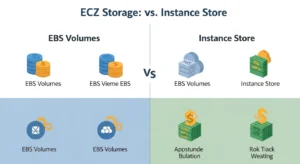
EC2 supports two storage types with fundamentally different behaviors:
| Amazon EBS (Elastic Block Store) | Instance Store | |
| Persistence | ✅ Persists independently of instance | ❌ Ephemeral — lost on stop/termination |
| Performance | High (gp3: 16,000 IOPS, io2: 256,000 IOPS) | Extremely high (NVMe SSD, local) |
| Snapshots | ✅ Yes (S3-backed) | ❌ Not supported |
| Best For | Persistent databases, OS volumes | Temporary cache, scratch processing |
| Cost | Per GB-month + IOPS | Included in instance price |
Best Practice: Always use Amazon EBS for your root volume and any data you need to preserve. Use instance store only for temporary high-speed scratch data where loss is acceptable.
Key Pairs and Secure Instance Access (SSH/RDP)
EC2 uses asymmetric key pairs for secure authentication:
- Linux instances: Connect via SSH using your private key (ssh -i key.pem ec2-user@<public-ip>)
- Windows instances: Decrypt the administrator password using your private key, then connect via RDP
- AWS Systems Manager Session Manager — connect to instances securely without SSH/RDP or open inbound ports — the recommended approach in 2026 for zero-trust access
User data scripts enable bootstrapping — automatically running shell scripts or cloud-init directives when an instance first launches, installing software and configuring the environment without manual intervention.
EC2 Instance Types: A Complete Breakdown (2026)
Choosing the right EC2 instance type is the single most impactful decision for both performance and cost. AWS offers over 700 instance types across 7 optimized families.
EC2 Instance Families Comparison Table
| Instance Family | Optimized For | Example Types | Best Use Case |
| T3/T4g (General) | Burstable Performance | t3.micro, t3.xlarge | Dev/test, low-traffic web apps |
| M6i/M7g (General) | Balanced CPU/Memory | m6i.large, m7g.2xlarge | Web servers, enterprise apps |
| C6i/C7g (Compute) | CPU-Intensive | c6i.2xlarge, c7g.4xlarge | HPC, gaming, ML inference |
| R6i/R7g (Memory) | Memory-Intensive | r6i.4xlarge, r7g.8xlarge | SAP, in-memory databases |
| P4/P5 (GPU) | ML Training/Graphics | p4d.24xlarge, p5.48xlarge | Deep learning, AI training |
| I4i (Storage) | High I/O Storage | i4i.xlarge, i4i.8xlarge | NoSQL, data warehouses |
| Graviton (ARM) | Cost-Performance | t4g, m7g, c7g series | 20–40% better price/performance |
General Purpose Instances (T, M, A Families)
T-series instances (T3, T4g) use a CPU credit system — they earn credits during low CPU periods and spend them during bursts. A t3.micro running at 5% CPU baseline earns credits that can be spent on CPU spikes up to 100%. Ideal for workloads with variable demand: development environments, small websites, and microservices.
M-series instances (M6i, M7g) provide a balanced ratio of vCPU to memory — the workhorses of EC2 for production web servers, application servers, and mid-tier enterprise applications.
Compute Optimized Instances (C Family)
C-series instances (C6i, C7g) deliver the highest vCPU-to-memory ratio in EC2 — optimized for CPU-bound workloads: high-performance web servers, scientific modeling, batch processing, gaming servers, and ML inference where GPU isn’t required.
Memory Optimized Instances (R, X, z Families)
R-series instances provide large RAM allocations relative to CPU — up to 768GB memory on r6i.24xlarge. Essential for SAP HANA, in-memory databases, Redis caching layers, and real-time big data analytics workloads with Amazon RDS or ElastiCache.
Storage Optimized Instances (I, D, H Families)
I-series instances (I4i) feature NVMe SSD instance store with extremely high sequential read/write throughput and IOPS — built for NoSQL databases (Cassandra, MongoDB), data warehousing, and Elasticsearch clusters requiring fast local storage.
Accelerated Computing Instances (P, G, Inf, Trn Families)
GPU instances unlock hardware acceleration for deep learning, AI training, video transcoding, and graphics rendering:
- P4/P5 — NVIDIA A100/H100 GPUs for foundation model training
- G5/G6 — NVIDIA A10G/L40S GPUs for inference and graphics
- Inf2 — AWS Inferentia2 chips for cost-efficient ML inference
- Trn1 — AWS Trainium chips for large-scale model training at lower cost than GPU instances
AWS Graviton Instances (ARM-Based, Cost-Optimized)
AWS Graviton (ARM-based) instances — T4g, M7g, C7g, R7g — deliver 20–40% better price-performance than comparable x86 Intel/AMD instances. Graviton3 (2022) and Graviton4 (2024) power the latest generation of cost-optimized EC2 instances across all families. In 2026, Graviton is the default recommendation for most new Linux workloads that don’t require Windows or x86-specific software.
Amazon EC2 Pricing Models Explained
Amazon EC2 pricing explained encompasses five distinct purchasing models — each optimized for a different usage pattern.
EC2 Pricing Comparison Table
| Pricing Model | Discount vs On-Demand | Commitment | Best For |
| On-Demand | Baseline (0%) | None | Dev/test, unpredictable workloads |
| Reserved Instances | Up to 72% | 1 or 3 years | Steady-state production workloads |
| Spot Instances | Up to 90% | None (interruptible) | Batch jobs, fault-tolerant workloads |
| Savings Plans | Up to 66% | 1 or 3 years | Flexible cross-service commitment |
| Dedicated Hosts | Variable | On-demand or reserved | License compliance (BYOL) |
On-Demand Instances: Maximum Flexibility
Pay for compute by the second (minimum 60 seconds) with no upfront commitment. Best for workloads with unpredictable traffic, short-term projects, and new applications being tested before committing to a pricing model.
Reserved Instances: Up to 72% Savings
Commit to a specific instance type, region, and term (1 or 3 years) in exchange for up to 72% discount. Standard Reserved Instances lock you into an instance family and size. Convertible Reserved Instances allow instance family changes during the term at slightly reduced discounts.
Spot Instances: Up to 90% Savings
Spot Instances use AWS’s spare EC2 capacity at up to 90% off On-Demand prices. The catch: AWS can interrupt Spot Instances with a 2-minute warning when it needs capacity back. Ideal for: batch processing, data analysis, ML training jobs, CI/CD pipelines, and rendering — any workload that can checkpoint and resume.
Savings Plans: Flexible Commitment Discounts
Savings Plans offer up to 66% savings in exchange for a commitment to a consistent amount of compute usage ($/hour) over 1 or 3 years. Unlike Reserved Instances, Savings Plans apply automatically across EC2, Lambda, and AWS Fargate — providing flexibility as your workload evolves.
Dedicated Hosts and Dedicated Instances
Dedicated Hosts give you a physical EC2 server for your exclusive use — required for Bring Your Own License (BYOL) software (Windows Server, SQL Server, Oracle) and compliance workloads requiring physical server isolation.
Amazon EC2 Key Features
Auto Scaling Groups: Dynamic Capacity Management
AWS Auto Scaling Groups (ASGs) automatically adjust the number of running EC2 instances based on demand. Configure minimum, desired, and maximum instance counts. When CPU exceeds your target threshold, ASG launches new instances within minutes. When demand drops, it terminates excess instances — ensuring you never pay for idle capacity.
Elastic Load Balancing (ELB): Traffic Distribution
Elastic Load Balancing distributes incoming traffic across multiple EC2 instances in different Availability Zones. AWS offers three load balancer types:
- Application Load Balancer (ALB) — Layer 7, HTTP/HTTPS, path-based routing
- Network Load Balancer (NLB) — Layer 4, extreme performance, TCP/UDP
- Gateway Load Balancer (GWLB) — for inline network appliances and firewalls
ELB automatically detects unhealthy instances and stops routing traffic to them — providing built-in high availability for your EC2 fleet.
CloudWatch Monitoring and Performance Metrics
Amazon CloudWatch collects EC2 metrics every minute by default (every 30 seconds with Detailed Monitoring enabled):
- CPUUtilization — % of allocated vCPU being used
- NetworkIn/Out — bytes transferred
- DiskReadOps/WriteOps — EBS I/O activity
- StatusCheckFailed — instance and system health status
Set CloudWatch Alarms to trigger Auto Scaling actions, send SNS notifications, or invoke Lambda functions when thresholds are breached.
EC2 and IAM: Role-Based Access Control
IAM roles for EC2 allow instances to securely access other AWS services (S3, DynamoDB, SQS) without storing access keys on the instance. The instance assumes the role via the instance metadata service (IMDS), fetching temporary credentials automatically. This is the security best practice — never store long-lived IAM credentials on EC2 instances.
EC2 Hibernation and Stop Behavior
- Stop — instance shuts down; EBS data persists; RAM content is lost; billing stops (EBS storage charges continue)
- Hibernate — RAM contents are written to the EBS root volume; on restart, the instance resumes exactly where it left off — ideal for long-running analysis workloads or development environments
- Terminate — instance is permanently deleted; EBS root volume deleted (unless configured otherwise)
Amazon EC2 vs. Other AWS Services
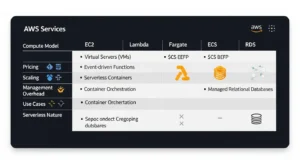
Comparison Table: EC2 vs. Lambda vs. Fargate vs. ECS vs. RDS
| Feature | EC2 | Lambda | Fargate | ECS | RDS |
| Workload Type | Any (VMs) | Functions (FaaS) | Containers | Containers | Managed DB |
| Management Level | Full control | Serverless | Serverless | Partial | Fully managed |
| Max Run Duration | Unlimited | 15 minutes | Unlimited | Unlimited | N/A |
| OS Access | ✅ Full | ❌ No | ❌ No | ❌ No | ❌ No |
| Pricing Model | Per hour/second | Per request/ms | Per vCPU/sec | EC2 or Fargate rates | Per instance/hour |
| Best For | General-purpose | Event-driven tasks | Containerized apps | Container fleet | SQL/NoSQL databases |
EC2 vs. AWS Lambda: When to Use Each
Choose AWS Lambda serverless compute when your workload is event-driven, stateless, and short-duration (under 15 minutes). Lambda has zero idle cost and scales to millions of concurrent executions instantly. Choose EC2 when you need long-running processes, stateful applications, GPU workloads, custom OS configurations, or predictable traffic where Reserved Instances reduce costs.
EC2 vs. AWS Fargate: Container Management
Choose running containers with AWS Fargate when you want to deploy Docker containers without managing EC2 instances. Fargate bills per vCPU/memory per second — better for variable container workloads. Choose EC2 when you need GPU support, privileged containers, or Reserved Instance savings for high-utilization container fleets.
EC2 vs. Amazon EKS: Kubernetes on AWS
Amazon EKS Kubernetes orchestration runs your Kubernetes control plane as a managed service — but your worker nodes run on EC2 (or Fargate). EC2 worker nodes give you full control over instance type, configuration, and networking within EKS clusters.
EC2 vs. Amazon S3: Compute vs. Storage
EC2 runs applications — it processes data, serves requests, and executes code. Amazon S3 stores data — objects, files, backups, and static assets. They work together: EC2 applications read from and write to S3 buckets as their persistent data layer.
EC2 vs. Amazon RDS: Database Considerations
Amazon RDS provides fully managed relational databases (MySQL, PostgreSQL, Oracle, SQL Server) with automated backups, patching, and Multi-AZ failover — running on EC2 under the hood but managed entirely by AWS. Run your own database on EC2 only when you need configurations that RDS doesn’t support (custom plugins, non-standard DB engines).
How to Set Up an EC2 Instance: Step-by-Step Guide
(HowTo Schema)
Step 1 — Choose an AMI
Sign in to the AWS Console → EC2 → Launch Instance. Choose an Amazon Machine Image: select Amazon Linux 2023 (free, AWS-optimized) for general Linux workloads, or Ubuntu 22.04 LTS for broad community package support. For Windows workloads, select Windows Server 2022 Base.
Step 2 — Select Instance Type
Choose the instance type matching your workload:
- Free Tier: t2.micro or t3.micro (1 vCPU, 1GB RAM) — free for 750 hours/month
- Small web app: t3.small or t3.medium
- Production web server: m6i.large or m7g.large
- Database: r6i.xlarge (memory-optimized)
Step 3 — Configure VPC, Subnet, and Security Groups
Select your VPC and choose a subnet (public subnet for internet-accessible instances, private subnet for backend services). Create or assign a Security Group:
- Allow port 22 (SSH) from your IP only — never from 0.0.0.0/0
- Allow port 443 (HTTPS) from anywhere for web servers
- Allow port 80 (HTTP) only if needed; redirect to HTTPS
Step 4 — Add Storage (EBS Volume)
The default root volume is gp3 (8GB for Linux, 30GB for Windows). Increase size as needed. Enable EBS encryption (AWS KMS) for all volumes containing sensitive data. Add additional EBS volumes for application data, separate from the OS volume.
Step 5 — Launch and Connect via SSH/RDP
Select or create a key pair (RSA or ED25519). Download the .pem file — this is your only chance to save it. Click Launch Instance. Connect:
Copy
chmod 400 your-key.pem
ssh -i “your-key.pem” ec2-user@<public-ip-or-dns>
For Windows: retrieve the administrator password using your key pair in the EC2 console, then connect via Remote Desktop.
EC2 Auto Scaling: How It Works
Auto Scaling Groups (ASG) Configuration
An Auto Scaling Group defines:
- Launch Template — AMI, instance type, security groups, IAM role
- Min / Desired / Max capacity — e.g., min 2, desired 4, max 20
- VPC and subnets — instances distributed across Availability Zones automatically
Scaling Policies: Target Tracking, Step, and Scheduled
- Target Tracking — maintain a target metric (e.g., 60% average CPU) by automatically scaling in or out
- Step Scaling — add/remove specific instance counts based on CloudWatch alarm breach thresholds
- Scheduled Scaling — pre-emptively scale at known peak times (e.g., add 10 instances every weekday at 8am)
T2/T3 CPU Credits: Burstable Performance Explained
T2/T3 instances earn CPU credits at a baseline rate relative to their size (e.g., t3.micro earns 6 credits/hour at a 10% CPU baseline). Each credit provides 1 minute of full vCPU usage. When credits are depleted on T2 instances, CPU is throttled to baseline. T3 instances support unlimited mode — they can burst indefinitely, but accrue per-vCPU-hour charges when sustained above baseline.
Amazon EC2 Security Best Practices
Use Security Groups as Instance Firewalls
Apply the principle of least privilege to security groups: allow only the specific ports and source IP ranges your application requires. Regularly audit security group rules — remove any 0.0.0.0/0 inbound rules on non-public services.
Assign IAM Roles (Not Access Keys) to EC2
Attach an IAM instance profile to your EC2 instance with only the permissions it needs. Never store AWS access key IDs and secret keys on EC2 instances — they can be compromised via metadata endpoint exposure or code vulnerabilities.
Enable VPC Flow Logs for Traffic Monitoring
VPC Flow Logs capture IP traffic information to and from network interfaces in your VPC. Store logs in Amazon S3 or CloudWatch Logs for security analysis, anomaly detection, and compliance auditing.
Patch and Update Regularly
Use AWS Systems Manager Patch Manager to automate OS patching across your EC2 fleet on a defined schedule. Unpatched instances are the single most common entry point for cloud security incidents.
Use Bastion Hosts for Private Instance Access
For instances in private subnets, deploy a hardened bastion host (jump server) in a public subnet — or better, use AWS Systems Manager Session Manager for browser-based shell access with zero inbound port requirements and full audit logging.
EC2 Pricing Optimization Tips
Right-Size with AWS Compute Optimizer
AWS Compute Optimizer analyzes 14 days of CloudWatch utilization data and recommends the optimal EC2 instance type for each workload. It identifies over-provisioned instances (downsize candidates) and under-provisioned instances (performance risks) — typically revealing 20–30% cost reduction opportunities in production fleets.
Use Spot Instances for Non-Critical Workloads
Move batch jobs, ML training, video encoding, and CI/CD pipelines to Spot Instances to cut compute costs by up to 90%. Use Spot Instance interruption handling (checkpointing, retry logic) to make workloads resilient to 2-minute termination notices.
Purchase Reserved Instances for Steady-State Loads
For EC2 instances running 24/7 for production workloads, 1-year Standard Reserved Instances provide approximately 40% savings over On-Demand. 3-year terms save up to 72%. Analyze your baseline usage with AWS Cost Explorer before committing.
Monitor with AWS Cost Explorer and CloudWatch
Enable AWS Cost Explorer hourly granularity to identify cost spikes immediately. Set CloudWatch Billing Alarms to receive notifications when monthly spend exceeds your threshold. Tag all EC2 instances with Environment, Project, and Owner tags to allocate costs to specific teams and workloads.
Frequently Asked Questions About EC2 Instances
Q1: What is an EC2 instance in simple terms? An EC2 instance is a virtual server in Amazon Web Services’ cloud. It’s like renting a computer with your chosen operating system, CPU, RAM, and storage — accessible from anywhere in the world via the internet.
Q2: How is EC2 billed? EC2 is billed based on instance type, operating system, region, and running hours. On-Demand instances are charged per second (minimum 60 seconds). You can reduce costs with Reserved Instances, Spot Instances, or Savings Plans.
Q3: What are EC2 instance types? EC2 instance types define the hardware configuration — CPU, memory, network bandwidth, and storage. AWS offers 7 families: General Purpose, Compute Optimized, Memory Optimized, Storage Optimized, Accelerated Computing (GPU), ARM-based Graviton, and High Performance Computing (HPC).
Q4: Can I resize my EC2 instance? Yes, EC2 instances are resizable. Stop the instance, then change the instance type via the AWS Console or CLI — as long as the new type is compatible with your current AMI architecture. See our complete guide: how to change an EC2 instance type.
Q5: What is the difference between EC2 and S3? EC2 provides compute power — it’s a virtual server that runs applications. Amazon S3 is an object storage service for storing files, backups, and static content. They work together: EC2 runs your app; S3 stores your data.
Conclusion
Here are the essential takeaways from this guide:
- ✅ EC2 provides resizable virtual machines with full OS control and 700+ instance configurations
- ✅ 7 instance families each optimized for a specific workload: general purpose, compute, memory, storage, GPU, ARM/Graviton, and HPC
- ✅ Multiple pricing models — On-Demand, Reserved (72% savings), Spot (90% savings), and Savings Plans
- ✅ Deep integrations with EBS, VPC, ELB, CloudWatch, Auto Scaling, and IAM
- ✅ AWS Compute Optimizer provides data-driven right-sizing recommendations to cut costs without sacrificing performance
Need to scale or resize your existing infrastructure? Check our step-by-step guide on how to change an EC2 instance type — or explore AWS Lambda serverless compute and running containers without EC2 using Fargate for workloads that benefit from serverless architecture.
In 2026, AWS Graviton4 instances continue to deliver industry-leading price-performance ratios across general-purpose, compute, and memory workloads — making the ARM-based Graviton family the default recommendation for cost-conscious teams building on EC2 today.