


Azure Data Studio is still a useful topic for SQL teams because many organizations built real developer workflows around it: cross-platform query editing, SQL notebooks, Git integration, extension-based database support, and fast iteration against SQL Server and Azure SQL Database. But any serious guide in 2026 has to start with the current reality: Microsoft has retired Azure Data Studio as of February 28, 2026, and it no longer receives updates or security fixes. That means this is no longer a “should we adopt it?” article. It is a “what was it good at, where did it fit, and how should teams handle its replacement?” article.
For DBAs, data engineers, SQL developers, analytics engineers, and platform teams, that distinction matters. Azure Data Studio was never just another SQL editor. It occupied a specific middle ground between the deep administrative breadth of SQL Server Management Studio and the broader software-development environment of Visual Studio Code with the MSSQL extension. Understanding that role is the key to both maintaining old workflows and designing better new ones.
Why Azure Data Studio Still Matters In SQL Workflows:
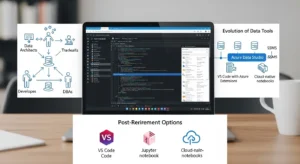
Azure Data Studio matters because it solved a real problem for modern SQL teams. SSMS was powerful, but it was Windows-only and heavily administration-centric. Developers and engineers wanted something lighter, script-friendly, Git-aware, and usable on macOS and Linux. ADS delivered that by combining a VS Code-style shell with SQL-first ergonomics: object browsing, IntelliSense, charting, notebooks, dashboards, and extension-driven flexibility. GitHub
That value proposition explains why so many teams standardized around it for developer workflow even when DBAs stayed in SSMS. A SQL developer could keep a repository of scripts, use built-in Git support, inspect query plans, chart small result sets, and document investigation steps in notebooks without constantly switching tools. For platform teams, it was a good compromise tool. For governance-heavy environments, it was often insufficient on its own.
Best Practices:
- Treat ADS as a historical workflow anchor, not a net-new platform choice.
- Inventory who still uses it and for what workflows before forcing migration.
- Separate “editor workflow” dependencies from “database operations” dependencies.
Common Mistakes:
- Assuming every ADS user needs the same replacement.
- Treating retirement as purely an end-user UI issue instead of a tooling-governance issue.
- Ignoring security risk from unsupported software.
Where Azure Data Studio Fit In The Microsoft Data Tooling Ecosystem:
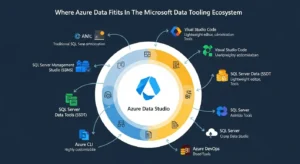
Historically, Microsoft’s SQL tooling stack had three distinct personalities.
SSMS was the heavyweight operational console. It was the tool for deep SQL Server administration, mature profiler scenarios, SQL Agent work, backup/restore management, and Windows-centric DBA tasks. Azure Data Studio was the lighter, modern, cross-platform SQL workspace. VS Code was the broader developer IDE that could be extended into database work.
Azure Data Studio fit best where SQL work looked like software development instead of point-and-click administration. It offered server groups, object explorer, T-SQL authoring, result visualization, Git-aware workspaces, integrated terminal support, and extensions for PostgreSQL, migration, dashboards, and more. That made it attractive to SQL developers, analytics engineers, and data platform teams operating across Windows, macOS, and Linux.
Microsoft’s retirement guidance makes the current direction explicit: consolidate development workflows into VS Code with the MSSQL extension and keep SSMS for full administration. That split reflects reality. The MSSQL extension now includes connection dialogs, object explorer, query results, query plan visualization, table design, schema design, schema compare, DACPAC/BACPAC support, data editing, and even SQL notebooks in preview. In other words, the development side of ADS has been absorbed into a broader, actively supported development platform.
Productivity Tip:
If your team already lives in VS Code for Python, YAML, Terraform, dbt, or app code, consolidating SQL work into VS Code reduces context switching and improves repo-level workflow consistency.
Governance Consideration:
Tooling standardization should follow task class:
- SSMS for full administration
- VS Code MSSQL for active supported development
- no new strategic dependence on ADS
Azure Data Studio Developer Workflows That Made It Useful:
What made Azure Data Studio valuable was not a generic feature list. It was the way features stacked into practical workflows, which is why many modern engineering teams and cloud-focused providers like GoCloud value tools that improve development efficiency and database management.
The query editor gave teams modern SQL ergonomics: autosuggestions, diagnostics, formatting, snippets, and quick iteration. The results viewer could handle large result sets and export to JSON, CSV, or Excel. Query plans and charting let developers move from “did this query run?” to “what is it doing?” without leaving the tool.
Connection management was another real strength. Azure Data Studio supported immediate connectivity to Azure SQL and SQL Server, while extensions expanded access to PostgreSQL, MySQL, and other platforms. That mattered for teams running mixed estates or working in cloud migration phases where not everything lived on one engine.
The dashboards and insight widgets were especially useful for lightweight analysis and quick database health checks. They were not a replacement for full observability, but they were good enough for interactive investigation and engineering triage. Many teams paired that with the integrated terminal and repo-based script libraries, which made ADS feel less like a traditional admin console and more like a practical SQL workstation.
Best Practices:
- Keep frequently used connection profiles organized by environment and purpose.
- Store reusable script libraries in repos, not scattered local files.
- Use query plans as part of routine SQL review, not only emergency tuning.
Common Mistakes:
- Treating built-in dashboards as a full monitoring solution.
- Using the same connection profile for admin, dev, and production work.
- Keeping business-critical scripts outside version control.
Azure Data Studio Notebooks And Reproducible Data Work:
One of ADS’s most distinctive strengths was notebooks. Azure Data Studio supported Jupyter-style notebooks with multiple kernels, including SQL, Python, PySpark, and others. That allowed teams to combine executable code, markdown explanation, results, and visuals in a single .ipynb artifact. For SQL shops, that was more than a novelty. It created a bridge between DBA troubleshooting, data exploration, runbooks, and knowledge sharing.
A good notebook workflow in ADS looked like this:
- explain the goal in markdown
- connect to the right server or database
- run SQL code cells with IntelliSense and snippets
- capture outputs inline
- add findings, caveats, or next steps
- commit the notebook to Git
That was useful for incident investigations, data validation exercises, migration rehearsals, onboarding material, and analyst-friendly walkthroughs. Instead of sharing screenshots and separate SQL files, teams could share a narrative artifact with executable logic inside it.
But notebooks also introduced governance problems. .ipynb files can be noisy in diffs, easy to bloat, and awkward to review if teams do not define conventions. Trusted vs non-trusted notebook behavior also matters when notebooks move across teams or originate externally. Without conventions for outputs, secrets, and execution state, notebook collaboration becomes messy fast.
Best Practices:
- Keep notebook cells small and purpose-driven.
- Strip unnecessary outputs before commit where possible.
- Use notebooks for reproducible investigation, not as a dumping ground for ad hoc experiments.
Common Mistakes:
- Checking in notebooks with sensitive data results.
- Treating notebooks as a substitute for tested deployment automation.
- Using notebooks where plain SQL scripts or projects would review better.
Azure Data Studio Extensions That Actually Improved Productivity:
Azure Data Studio’s extension model was one of its biggest advantages. Instead of forcing every user into the same experience, ADS let teams build a targeted stack.
Important extension categories included:
- SQL admin and diagnostics
- PostgreSQL and multi-database support
- dashboards and performance insights
- migration utilities
- SQL database projects
- developer productivity and AI assistance
Notable examples from the official extension list include:
- PostgreSQL
- SQL Server Agent
- SQL Server Profiler
- SQL Server Schema Compare
- SQL Server Dacpac
- SQL Database Projects
- WhoIsActive
- Query History
- GitHub Copilot
- IntelliCode
- SandDance
This mattered because the “best ADS setup” varied by role. A SQL developer wanted Query History, Git-friendly workspace usage, and maybe Database Projects. A DBA wanted WhoIsActive, Profiler, Assessment, and dashboards. A data engineer might care more about PostgreSQL support, notebooks, and repo integration.
The risk, however, was extension sprawl. When every engineer installs a different mix of plugins, team workflows become inconsistent. Extension-heavy tools need baseline profiles, version standards, and documentation of what is actually required. Otherwise the tool becomes hard to support and harder to migrate.
Productivity Tip:
Define a “team-supported extension stack” instead of letting every user build their own random IDE.
Governance Consideration:
Track which workflows depend on extensions that now require replacement in VS Code or SSMS.
Git Integration And Team Collaboration In Azure Data Studio:
Azure Data Studio supported Git for source control and inherited much of that behavior from VS Code. Users could open an existing Git repository or initialize a new one directly from the Source Control view. That seems basic, but it was a major workflow improvement over traditional SQL tooling where scripts often lived on desktops, shared drives, or email threads.
The practical value was in workspace-based SQL development. A team could keep:
- operational scripts
- notebook investigations
- schema scripts
- sample data loaders
- environment-specific config templates
in one repo and work with them like any other software artifact. That made branching, pull requests, peer review, and release tagging much more realistic for database work.
But Git support in a tool does not equal a mature Git workflow. Teams still needed conventions:
- one repo or many?
- state-based database project or migration scripts?
- how are notebook diffs reviewed?
- what goes into pull-request validation?
- who approves schema changes?
This is where most generic Azure Data Studio guides fail. Git integration is not valuable because a panel exists in the IDE. It is valuable only when SQL work is shaped into a reviewable, repeatable team workflow.
Best Practices:
- Keep SQL scripts, notebooks, and schema artifacts in repositories with clear structure.
- Review SQL changes like application code.
- Standardize branching and release conventions for database changes.
Common Mistakes:
- Mixing generated artifacts, ad hoc scratch files, and production scripts in one folder.
- Treating Git as backup instead of collaboration.
- Skipping peer review for SQL because “it’s just a script.”
Schema Management, Migrations, And CI/CD Beyond Azure Data Studio:
This is where mature teams outgrow tool-centric thinking. Azure Data Studio could help with scripts, extensions, and even SQL database project workflows, but serious schema governance belongs in SQL database projects and CI/CD pipelines. Microsoft describes SQL database projects as a local declarative representation of database schema that can be built into a .dacpac artifact and integrated into repeatable deployment processes. That is the real backbone of database DevOps.
The core model is simple:
- define objects once in declarative T-SQL
- build the project
- generate a DACPAC
- validate object references and syntax
- deploy changes reliably to target databases
That is fundamentally different from keeping a folder of hand-written alter scripts and hoping release order stays correct. For enterprise teams, database projects become the single source of truth for schema, and CI/CD becomes the system of control for promotion across environments.
Microsoft also makes clear that SDK-style Microsoft.Build.Sql projects are the forward-looking format and are used by modern tools such as the SQL Database Projects extension in VS Code. That matters because if you are migrating off ADS, you should not just move editors. You should modernize your schema workflow too.
Best Practices:
- Use declarative database projects for governed schema changes.
- Build DACPACs in CI, not manually on workstations.
- Separate deployment automation from editor preference.
Common Mistakes:
- Managing production schema primarily through ad hoc scripts.
- Using source control without a release artifact strategy.
- Migrating from ADS to VS Code without improving deployment workflow.
Where Azure Data Studio Was The Right Tool And Where It Was Not:

Azure Data Studio was the right tool when the work looked like:
- query authoring
- cross-platform SQL development
- notebook-based analysis or documentation
- lightweight database exploration
- Git-friendly SQL workflows
- multi-database work through extensions
It was not the right tool for:
- full SQL Server administration
- mature SQL Agent workflows
- complete backup/restore operations as a primary GUI
- the deepest profiler and operational diagnostics scenarios
- long-term strategic standardization after retirement
Microsoft’s own replacement mapping makes this explicit. SQL Server Agent maps to SSMS. Full administration maps to SSMS or preview operations in the VS Code MSSQL extension. Schema management and compare map to VS Code MSSQL or SQL Database Projects. PostgreSQL work maps to a PostgreSQL extension in VS Code. That tells you how Microsoft now wants teams to divide responsibilities.
Decision Framework:
- Use SSMS if the work is operationally deep and SQL Server-specific.
- Use VS Code MSSQL if the work is development-oriented, cross-repo, or CI/CD-linked.
- Keep ADS only as a temporary legacy tool where migration is still underway.
Practical Team Workflows By Role:
For SQL Developers:
The best ADS-era workflow was repo-based query authoring, notebooks for investigation, and project-based schema where possible. The modern replacement is VS Code with the MSSQL extension, plus SQL database projects and pipeline validation.
For Data Engineers And Analytics Engineers:
ADS was useful because it was cross-platform, script-friendly, and notebook-capable. If your work spans SQL plus Python, YAML, dbt, shell scripts, and documentation, VS Code is now the more coherent long-term home.
For DBAs And Platform Engineers:
ADS was never the full administrative console. It was helpful for ad hoc queries, quick checks, and some extension-driven diagnostics, but the center of gravity for full SQL Server operations remains SSMS. Migration off ADS should prioritize operational safety over familiarity.
For Azure Administrators And Governance Owners:
The important issue is standardization. Unsupported tools create risk. Governance owners should define:
- supported editors
- approved extension sets
- source-control requirements
- deployment model
- secrets and environment handling
- artifact retention and auditability
That is more important than preserving a favorite editor experience.
FAQs:
Is Azure Data Studio Still A Good Tool For Legacy Environments?
It can still be useful for understanding or temporarily maintaining older workflows, but it is no longer a supported strategic choice. Because it no longer receives updates or security fixes, organizations should treat it as legacy software and plan migration.
What Made Azure Data Studio Popular With Developers?
Its mix of cross-platform support, modern query editing, notebooks, Git integration, and extension-driven flexibility matched the way many engineering teams actually work. It felt closer to an IDE than a classic admin console.
Was Azure Data Studio Better Than SSMS?
Not universally. It was better for some developer workflows and cross-platform use, but not for full SQL Server administration. The right comparison was always task-based, not feature-count based.
What Is The Best Replacement For Azure Data Studio Notebooks?
For Microsoft’s active SQL tooling direction, the closest path is VS Code with SQL notebooks support in the MSSQL extension. Teams should also evaluate whether notebooks are still the best artifact for the workflow versus plain SQL, markdown, or automation runbooks.
Can I Still Open Old ADS Queries And Projects Elsewhere?
Yes. Microsoft states that existing queries, scripts, and SQL database projects can be opened in Visual Studio Code without conversion. That makes migration materially easier than many teams expect.
Conclusion:
Azure Data Studio earned its place because it brought cross-platform SQL work, notebooks, Git integration, and extension-driven productivity into one developer-friendly environment. But the right conclusion in 2026 is not nostalgia. It is architecture. Azure Data Studio showed what modern database workflows should feel like, yet Microsoft has now moved that future into VS Code for development and SSMS for full administration. If your team still uses Azure Data Studio, the goal should be to preserve the good workflows, not the retired tool: keep the Git discipline, keep the query-review habits, keep the reproducible notebook mindset where it helps, and move the supported path to modern SQL tooling and governed deployment practices.