


The invoice lands, and the total is higher than last month. Nobody on the team can say why. Was it a new service, a traffic spike, or a test environment someone forgot to turn off?
This is the moment AWS Cost Explorer was built for. It sits inside your AWS console and turns a wall of billing numbers into charts you can slice by service, Region, account, and more.
Many teams open it once, glance at a graph, and close it. They miss most of what it can do. Used well, it answers three questions fast: where is the money going, what changed, and what will next month cost.
This guide shows you how to use it. You will learn:
- What AWS Cost Explorer is, how it works, and what it costs
- How to turn it on and read your first report
- How cost types like unblended and amortized change the numbers
- How to find savings with Savings Plans, Reserved Instance, and rightsizing views
- How it compares with AWS Budgets and the Cost and Usage Report
- Limits and mistakes to avoid
All product claims link to AWS’s own pages and documentation. Features and prices change, so check those pages before you rely on a detail.
What Is AWS Cost Explorer?
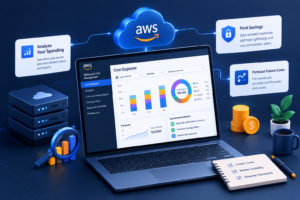
AWS Cost Explorer is a cost management tool in the AWS console that lets you visualize, filter, and forecast your AWS cost and usage. It groups spend by dimensions such as service, Region, and account, includes default and custom reports, and helps you spot trends, anomalies, and savings opportunities.
AWS describes it as a way to explore costs at a high level or at a detailed level of analysis. Think of it as the analysis screen for your bill. It does not change anything in your environment. It only shows you what happened and what is likely to happen next.
What AWS Cost Explorer Shows You
According to the AWS Cost Explorer FAQs, the tool lets you explore costs and usage using filtering dimensions such as AWS service, Region, and member account. Typical views include:
- Monthly and daily cost trends
- Spend broken down by service, Region, linked account, or tag
- Reports on Reserved Instance and Savings Plans utilization and coverage
- Forecasts of future cost and usage
- Recommendations for rightsizing and commitment purchases
This is the core of AWS cost management for most teams, and the feature set sits inside the wider AWS Billing and Cost Management console.
How AWS Cost Explorer Works
Cost Explorer reads the billing data AWS already collects about your account. You do not install anything or tag anything to get started.
A few facts from AWS’s enabling guide are worth knowing:
- After you enable it, AWS prepares data for the current month and the previous 13 months.
- The current month’s data is available in about 24 hours. The rest takes a few days longer.
- Cost Explorer updates your cost data at least once every 24 hours.
That last point matters. Cost Explorer is not a real time monitor. If something spikes at 2 p.m., you may not see it until the next refresh.
For forecasts, AWS says Cost Explorer estimates cost and usage for the next 18 months at monthly granularity and the next 3 months at daily granularity, based on your historical pattern. Older AWS documentation shows a shorter horizon, so rely on the current FAQ and the options shown in your console. A forecast also needs enough history behind it, so brand new accounts may not see one yet.
What Does AWS Cost Explorer Cost?
Using Cost Explorer in the console carries no additional charge, according to AWS’s comparison of Budgets and Cost Explorer. A few parts are paid:
- The Cost Explorer API. AWS says each request costs $0.01, and if the result is paginated, each page counts as a separate request.
- Hourly granularity. Hourly data for the past 14 days is an optional, paid feature. See the Cost Explorer pricing page for current rates.
If you only use the console at daily or monthly detail, you are in the free zone.
Who Can Use It
You enable Cost Explorer once per account from the console. AWS notes that you cannot enable it through the API. If your account is a member account in an organization where the management account has enabled Cost Explorer, you can launch it too.
Access is controlled with IAM permissions, so someone on your team may need to grant you rights before you see anything.
How to Turn On AWS Cost Explorer
- Open the Billing and Cost Management console at console.aws.amazon.com/costmanagement.
- Choose Cost Explorer in the navigation pane.
- On the welcome page, choose Launch Cost Explorer.
AWS also sets up Cost Anomaly Detection when you enable Cost Explorer, with a services monitor and a daily summary alert. Signing up for the Cost and Usage Report does not turn Cost Explorer on by itself.
How to Use AWS Cost Explorer to Analyze Your AWS Bill
Once Cost Explorer is on, a simple routine gets you to answers quickly. Follow these steps the first time, then repeat them monthly.
- Open Cost Explorer. Choose it in the Billing and Cost Management console. Start with the default cost and usage view.
- Set the date range and granularity. Pick the last three to six months at monthly granularity to see the trend. Switch to daily when you need to hunt for a spike.
- Group by Service. The chart shows which AWS services cost the most. Note the top three.
- Change the grouping. Try Linked Account, Region, Usage Type, or a tag. Each one answers a different question.
- Filter to focus. Narrow the view to one service, account, or Region, then look at what changed.
- Choose a cost type. Use unblended for what you were charged, or amortized to spread out commitment fees.
- Save the report. Name it, so you can reopen the same view next month.
Group By and Filters
Grouping controls how the chart splits your spend. Filters control which spend appears at all. AWS lists service, Region, and member account among the main dimensions. You can also work with cost allocation tags and cost categories, which AWS documents in its guide to choosing advanced options.
A useful pattern is to filter first and group second. For example, filter to Amazon EC2, then group by usage type to see whether the cost comes from instance hours, data transfer, or storage.
Default Reports
AWS says Cost Explorer includes five default reports on its Reports page:
- Monthly cost by service
- Monthly cost by linked account
- Monthly EC2 running hours costs and usage
- Daily costs
- AWS Marketplace costs
Open any of them as a starting point, change the filters, and save your own version. Saved reports keep your filters and group by selections.
Understanding Cost Types
One setting causes more confusion than any other. The same month of spend can look very different depending on the cost type. AWS defines five in its advanced options guide.
| Cost type | What it shows | Best used for |
| Unblended | The cost of usage as it is charged | Seeing charges when they happen |
| Amortized | Unblended cost plus the amortized share of upfront and recurring reservation fees | Spreading commitment fees across the term |
| Blended | The average cost of usage across a consolidated billing family | Organizations using consolidated billing |
| Net unblended | Cost after discounts | Seeing what you actually pay |
| Net amortized | Amortized cost that also includes discounts, such as RI volume discounts | Commitment reporting after discounts |
Here is why it matters. An upfront Reserved Instance fee shows up as one large spike on the first of the month in the unblended view. In the amortized view, the same fee is spread into a smooth daily rate. If you only look at unblended costs, you might panic at a spike that is really a prepaid commitment.
Reading Forecasts
Turn on Show forecasted values in the advanced options to see AWS’s prediction of future spend. The forecast is based on your past costs, so it reflects your history. It cannot know about a launch next month, a new customer, or a migration you have not started.
Use it as a planning aid. Pair it with a budget so you get alerts if actual spend drifts from the plan.
Ask Questions in Plain English
AWS also lets you ask cost questions inside Cost Explorer using Amazon Q Developer. According to the FAQs, you can type a question such as which services cost the most last quarter, or select an “Analyze with Amazon Q” button on a report for an explanation of trends, top drivers, and anomalies. You need Amazon Q Developer permissions in addition to your normal Cost Explorer access.
Tips for Better Reports
- Tag resources consistently, so grouping by tag tells a clear story.
- Compare the same month across two periods to isolate what changed.
- Use daily granularity for investigations and monthly for reporting.
- Save one report per question you ask regularly.
- Check refund and credit treatment in the advanced options before you share numbers with finance.
How to Create a Custom AWS Cost Explorer Report: A Worked Example
Default reports are a good start, but the real value comes from reports that match your own questions. Here is how to build one that answers a common question: “How much does each environment cost us every month?”
- Tag your resources. Use a consistent key, such as Environment, with values like prod, staging, and dev.
- Activate the tag for cost allocation. In the Billing and Cost Management console, activate the tag key as a cost allocation tag. AWS notes that newly activated tags can take up to 24 hours to appear in your cost data.
- Open Cost Explorer. Set the date range to the last six months and the granularity to monthly.
- Group by Tag. Choose the Environment key. The chart now splits your spend by environment.
- Check the untagged slice. Spend without the tag appears as its own group. A large untagged slice tells you where your tagging needs work.
- Save the report. Give it a clear name, such as Monthly cost by environment, and reopen it each month.
When you read the result, look for three things. First, the share that production takes. Second, whether development or staging is growing faster than it should. Third, how much remains untagged, because that is spend nobody owns.
How to Investigate a Cost Spike: A Worked Walkthrough
The numbers in this walkthrough are hypothetical, but the method is the one most teams use. Imagine your monthly bill rose from $12,000 to $15,500. That is a $3,500 increase, and someone wants an answer today.
- Group by Service. You see that EC2 – Other rose by $2,900, Amazon S3 by $400, and everything else by $200 combined. Those three add up to the full $3,500.
- Filter to EC2 – Other and group by Usage Type. Most of the increase sits under NAT gateway data processing, which points to traffic flowing through a NAT gateway.
- Group by Linked Account. Nearly all of it comes from one development account.
- Switch to daily granularity. The jump starts on the 9th, which matches the date of a recent deployment.
- Take action. The team finds a service sending large amounts of traffic through the NAT gateway and fixes the route. They also add a budget alert on that account.
Cost Explorer did not fix anything. It simply took four views and a few minutes to move from “the bill is higher” to a specific cause, owner, and date. That speed is what makes it worth opening every week.
How to Reduce AWS Costs With Cost Explorer
Cost Explorer does not cut your bill by itself. It shows you where to look. Here are the views that tend to lead to real savings, in the order most teams should try them.
Spot the Top Spenders and Surprises
Start with last month grouped by service, then compare it to the month before. Look for two things: services that are large, and services that grew.
Switch to daily granularity to find spikes. A sudden jump that stays high usually means something new is running. A single spike may be a one time job or a data transfer event.
AWS also sets up AWS Cost Anomaly Detection when you enable Cost Explorer, which uses machine learning to flag unusual spend and point to root causes. Review those alerts alongside your charts.
Use Rightsizing Recommendations
Cost Explorer includes rightsizing recommendations for EC2 instances that look larger than their workload needs. AWS Compute Optimizer offers a deeper view of compute resources, including idle detection.
Change one instance at a time and watch performance afterward. A recommendation is a starting point, not a command.
Check Reserved Instance Reports
If you own Reserved Instances (RIs), AWS documents two reports in its default reports guide:
- RI Utilization. Shows how much of the RI hours you bought were actually used. Low utilization means you are paying for capacity you do not use.
- RI Coverage. Shows how much of your running instance hours are covered by RIs. Low coverage means lots of usage is still billed at On-Demand rates.
You can set a utilization target and see which reservations fall below it. AWS’s reports also show estimated net savings, calculated by subtracting the cost of unused reservations from reservation savings.
Review Savings Plans Reports and Recommendations
AWS Savings Plans are a flexible pricing model that AWS says can save up to 72% compared with On-Demand prices. Cost Explorer helps you manage them with three views:
- Recommendations. Choose a Savings Plans type with the recommendation parameters and see estimated savings. AWS notes that recommendations can take up to 24 hours to update after a purchase.
- Utilization report. Shows how much of your commitment you actually used.
- Coverage report. Shows how much of your eligible usage is covered by Savings Plans.
A quick rule of thumb: low utilization suggests you bought too much, and low coverage suggests room to commit more. Buy gradually, and review the reports after each purchase.
Multi-Account Environments
Many companies run several AWS accounts under AWS Organizations. Cost Explorer works well here, as long as you set it up with that in mind.
- Group by Linked Account to see which team or environment drives cost.
- Use consolidated billing so commitments can be shared. AWS notes that Savings Plans purchased in one account can apply across an organization.
- Use the blended cost type only when you understand how consolidated billing averages rates. Most teams prefer unblended or amortized views.
- Remember that what each account can see depends on whether Cost Explorer is enabled by the management account and which permissions you grant.
Tags and Cost Categories
Tags make Cost Explorer far more useful. Activate your cost allocation tags in the billing console, then group by them to see cost per project, team, or environment. Use AWS Cost Categories to bundle accounts and tags into business friendly groups, such as product line or department.
Untagged spend is the main reason cost reports end with the question, “Whose is this?”
The Cost Explorer API
The Cost Explorer API is the query service behind the console. It is available through the command line and supported AWS SDKs, so you can build your own dashboards or reports.
Keep the cost in mind. AWS charges $0.01 per request, and each page of a paginated result counts as its own request. Filter your queries tightly, avoid polling every few minutes, and give access only to people who need it, since cost data can be sensitive.
Using the AWS CLI With Cost Explorer
If you prefer the command line, the AWS CLI can pull the same data. This example returns last month’s unblended cost grouped by service:
aws ce get-cost-and-usage \
–time-period Start=2026-09-01,End=2026-10-01 \
–granularity MONTHLY \
–metrics UnblendedCost \
–group-by Type=DIMENSION,Key=SERVICE
The end date is exclusive, so this covers all of September. Your IAM user or role needs permission for the ce:GetCostAndUsage action. Remember that each request is billed, so run queries on purpose and save the output instead of repeating the same call.
Related AWS Cost Tools That Work With Cost Explorer
Cost Explorer is one piece of a larger toolkit. These AWS tools pair well with it:
- AWS Billing and Cost Management console. The home for invoices, credits, cost allocation tags, and Cost Explorer itself.
- AWS Free Tier. Track your Free Tier usage so a trial does not quietly turn into a charge.
- AWS Pricing Calculator. Estimate the cost of a design before you build it, then compare the estimate with Cost Explorer after launch.
- AWS Trusted Advisor. Checks your resources against best practices, including cost related ones.
- Cost Optimization Hub. Collects savings recommendations from across your accounts into one prioritized list.
- AWS Compute Optimizer. Goes deeper on compute rightsizing and idle resources.
A simple split works well. Cost Explorer tells you what happened, the Pricing Calculator tells you what to expect, and the optimization tools tell you what to change.
AWS Cost Explorer and FinOps: A Monthly Review Routine
FinOps, short for cloud financial operations, is the practice of bringing finance, engineering, and business teams together to manage cloud spend. AWS covers the topic on its Cloud Financial Management page, and Cost Explorer is the natural place to start.
You do not need a big program. A short monthly routine is enough:
- Week one: Review last month’s spend against budget. Open your saved reports and note what changed.
- Week two: Send each team a view of its own spend, filtered by tag or account.
- Week three: Check Savings Plans and Reserved Instance utilization and coverage.
- Week four: Act on one rightsizing or cleanup item, and record the result.
Track three numbers over time: total spend, the percentage of spend that is tagged, and your commitment coverage. If all three move in the right direction, your cost management is working. AWS’s Cost Optimization pillar of the Well-Architected Framework is a good next read for the principles behind this routine.
AWS Cost Explorer vs AWS Budgets vs Cost and Usage Report
These three tools are often confused, yet they do different jobs. Cost Explorer helps you analyze spend. Budgets helps you control it. Data Exports, which includes the Cost and Usage Report (CUR) 2.0, gives you the raw detail.
| Tool | Main job | Best for | Pricing note |
| AWS Cost Explorer | Visualize, filter, and forecast cost and usage | Finding out why spend changed | No additional charge in the console; API costs $0.01 per request |
| AWS Budgets | Set cost or usage thresholds and send alerts | Staying ahead of overspend | First two budgets free, then a monthly fee per budget |
| AWS Data Exports (CUR 2.0) | Deliver detailed billing data for your own analysis | Custom reporting, chargeback, and deep queries | You pay for storage and any query or dashboard tools you use |
The pricing notes for Cost Explorer and Budgets come from AWS’s side by side comparison, which lists Budgets as best for cost tracking and alerts, and Cost Explorer as best for cost analysis, usage reporting, savings recommendations, and forecasting.
AWS describes CUR 2.0 as the new and recommended way to receive detailed cost and usage data. It supports basic SQL queries and can deploy a prebuilt QuickSight dashboard.
Which One Should You Use?
- Use Cost Explorer when someone asks, “Why did our bill change?”
- Use Budgets when you want an email or alert before spend crosses a line.
- Use Data Exports when you need line item detail or want to join billing data with your own systems.
Most teams end up using all three. Cost Explorer for weekly reviews, Budgets for guardrails, and exports for finance and engineering reports.
Limitations of AWS Cost Explorer
Cost Explorer is powerful, but it has edges. Know them before you promise anyone an exact number.
- It is not real time. AWS says it updates cost data at least once every 24 hours.
- History is limited by default. AWS prepares the current month plus the previous 13 months. Check your console preferences for longer monthly views.
- Forecasts rest on history. They cannot see upcoming launches or planned changes.
- Some detail costs extra. Hourly granularity is a paid feature, and the API is billed per request.
- It analyzes but does not alert. For alerts, pair it with Budgets and Cost Anomaly Detection.
- Numbers vary by cost type. Unblended, amortized, and net views can differ from each other and from your invoice, so reconcile before you publish.
Common Mistakes to Avoid
- Reading only one cost type. Switch between unblended and amortized when you have commitments.
- Ignoring tags. Without them, grouping tells you what was spent but not by whom.
- Treating the forecast as a promise. Use it to plan, then watch actuals.
- Running up API charges. Poll less often and filter tightly.
- Acting on rightsizing advice blindly. Test changes in a safe environment first.
- Looking once a quarter. A monthly saved report catches problems early.
- Skipping permissions. Give finance and engineering read access so questions get answered fast.
AWS Cost Explorer Best Practices for Businesses
Small habits make Cost Explorer far more useful across a company. These are the ones that pay off most.
- Give every cost an owner. Use a short, enforced tag policy so each team can see and explain its own spend.
- Separate production from everything else. Using different AWS accounts for production, staging, and development makes the Linked Account view instantly meaningful.
- Agree on one cost type for reporting. Decide whether finance reviews unblended, amortized, or net amortized numbers, and write it down so reports never disagree.
- Hold a fifteen minute weekly review. Open the same two or three saved reports, compare them with the previous week, and note anything unusual.
- Pair analysis with alerts. Cost Explorer shows the past, while Budgets and Cost Anomaly Detection warn you early.
- Keep your own history. Because the standard view covers about 13 months, export key monthly totals or use Data Exports if you need long term records.
- Review commitments every quarter. Check Savings Plans and Reserved Instance utilization and coverage before they expire or when your workloads change.
- Share views, not screenshots. Give team leads read access so they can explore their own numbers and ask better questions.
Practical Examples
These three scenarios are illustrative, not real customer cases.
The surprise spike. A team notices a sharp jump on the daily chart. Grouping by service points to a data transfer line. Grouping by usage type narrows it to one workload, and an engineer fixes a misconfigured job.
The prepaid commitment. A finance lead sees a large charge on the first of the month in the unblended view. Switching to amortized shows a steady daily cost, so no one raises a false alarm.
The Savings Plans check. An engineer opens the Coverage report and sees that steady compute usage still runs On-Demand. After modeling a purchase, the team buys a smaller plan and watches utilization for a month.
Conclusion
AWS Cost Explorer is the quickest way to understand your cloud bill. Turn it on, build a few saved reports, learn the cost types, and review the same views every month. Add tags so spend has an owner, use the Savings Plans and Reserved Instance reports to find commitment gaps, and pair it with Budgets for alerts.
The tool is free to use in the console, and the answers it gives are only a few clicks away. Open it this week, save your first report, and make it part of your monthly routine.