

DigitalOcean is genuinely excellent — predictable pricing, a clean control panel, and a developer experience that lets you spin up a Droplet in 55 seconds. But if you’ve hit the point where you need multi-region failover across more than 8 locations, compliance frameworks like HIPAA or SOC 2, advanced ML/AI tooling, or serverless at scale, you’ve likely already started Googling how to migrate from DigitalOcean to AWS.
This guide gives you everything: a full service mapping table, real CLI commands for every migration path (Rclone, rsync, pg_dump, Velero), a cost comparison with actual dollar amounts, and a zero-downtime DNS cutover strategy. No hand-waving — just the commands you need to execute.
Why Developers Move from DigitalOcean to AWS
When DigitalOcean Is No Longer Enough
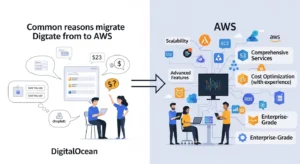
DigitalOcean thrives at the indie-developer-to-Series-A stage. Its limitations become visible when you hit specific scale inflection points:
- Global reach: DigitalOcean operates 8 data centre regions. AWS operates 39 regions across 123 Availability Zones — critical for latency-sensitive applications serving users in Southeast Asia, South America, or the Middle East where DigitalOcean has no presence.
- Compliance requirements: Enterprise sales motions increasingly require FedRAMP, HIPAA BAA, PCI-DSS Level 1, or ISO 27017 certifications. AWS holds 143 compliance certifications. DigitalOcean does not operate a FedRAMP-authorised environment.
- Service breadth: DigitalOcean offers ~30 products. AWS offers 200+ services — including SageMaker (ML), Kinesis (streaming), Redshift (data warehouse), Step Functions (orchestration), and Bedrock (generative AI) — none of which have DigitalOcean equivalents.
- Enterprise networking: VPC peering, Direct Connect, Transit Gateway, PrivateLink — AWS provides the full enterprise networking stack that DigitalOcean’s simplified networking model cannot match.
- AWS Activate credits: Eligible pre-Series B startups can receive up to $100,000 in AWS credits, substantially offsetting the first year of infrastructure costs.
DigitalOcean vs AWS — Key Differences at Scale
| Feature | DigitalOcean | AWS | Winner for Scale |
| Regions / AZs | 8 regions | 39 regions / 123 AZs | AWS |
| Compute options | Droplets, GPU Droplets | EC2 (750+ instance types), Lambda, Fargate | AWS |
| Managed Kubernetes | DOKS (up to 1,000 nodes) | EKS (no hard node limit) | AWS |
| Object storage | Spaces ($5/mo flat, 1TB egress) | S3 (pay-per-use, lifecycle policies, Glacier) | DO for simplicity; AWS for features |
| Compliance certs | Limited | 143 certifications | AWS |
| Pricing model | Flat monthly (predictable) | Pay-per-second (complex but optimisable) | DO for budgeting; AWS for optimisation |
| Egress bandwidth | $0.01/GB | $0.09/GB | DigitalOcean |
| Startup credits | DigitalOcean Startups program | Up to $100,000 (AWS Activate) | AWS |
| AI/ML services | GPU Droplets only | SageMaker, Bedrock, Rekognition, 50+ AI services | AWS |
| Support | Flat-fee tiers | Business Support from $100/mo | Comparable |
Honest Take: If you’re running a developer tool, side project, or SaaS under $10k MRR with no compliance requirements, DigitalOcean may still be the better choice. AWS complexity has real costs in engineering time. Migrate when the ecosystem advantage outweighs the operational overhead — not before.
DigitalOcean to AWS: Service Mapping Reference
Every DigitalOcean product has a direct AWS equivalent. Use this table as your architectural reference before designing the target state.
| DigitalOcean Service | AWS Equivalent | Primary Migration Tool |
| Droplets (VMs) | Amazon EC2 | AWS Application Migration Service (MGN) / rsync |
| Spaces (Object Storage) | Amazon S3 | Rclone / AWS DataSync |
| Managed Databases (PostgreSQL, MySQL) | Amazon RDS | pg_dump / mysqldump / AWS DMS |
| Managed Redis | Amazon ElastiCache (Redis) | redis-cli DUMP/RESTORE or AWS DMS |
| DOKS (Kubernetes) | Amazon EKS | Velero + kubectl manifest export |
| App Platform | AWS Elastic Beanstalk / ECS Fargate | Dockerfile + EB CLI / task definition |
| Load Balancer | AWS ALB / NLB | Terraform / AWS Console |
| Block Storage (Volumes) | Amazon EBS | rsync + EBS snapshot |
| Floating IP | Elastic IP Address | AWS Console / CLI |
| DNS | Amazon Route 53 | Manual record export / Route 53 import |
| Snapshots/Backups | AWS AMI / EBS Snapshots | MGN continuous replication |
| Firewall rules | AWS Security Groups / NACLs | Manual recreation in VPC |
| CDN | Amazon CloudFront | Origin swap |
| VPC | Amazon VPC | Terraform |
Before You Migrate: Planning Your DigitalOcean to AWS Move
Audit Your DigitalOcean Environment
Run a full inventory before writing a single line of Terraform. In your DigitalOcean control panel or via the doctl CLI:
Copy
# Install doctl and authenticate
doctl auth init
# List all Droplets
doctl compute droplet list –format “ID,Name,Memory,VCPUs,Disk,Region,Status”
# List all Spaces buckets
doctl spaces list
# List all managed databases
doctl databases list
# List all Kubernetes clusters
doctl kubernetes cluster list
# List all Load Balancers
doctl compute load-balancer list
# List all Floating IPs
doctl compute floating-ip list
Export this inventory to a spreadsheet. For each resource, document: size/capacity, region, attached resources, and DNS names pointing to it.
Design Your AWS Architecture
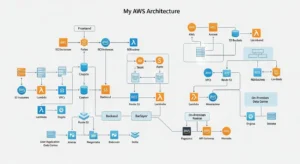
Map your DigitalOcean region to the nearest AWS region:
| DigitalOcean Region | Nearest AWS Region |
| NYC1/NYC3 | us-east-1 (N. Virginia) |
| SFO3 | us-west-2 (Oregon) |
| AMS3 | eu-west-1 (Ireland) |
| FRA1 | eu-central-1 (Frankfurt) |
| SGP1 | ap-southeast-1 (Singapore) |
| BLR1 | ap-south-1 (Mumbai) |
| SYD1 | ap-southeast-2 (Sydney) |
Define your AWS VPC CIDR, subnet layout (public/private), security group rules, and IAM roles in Terraform before any migration begins. The AWS Well-Architected Framework provides the canonical reference architecture.
Cost Estimation: DigitalOcean vs AWS Pricing Comparison
The honest answer: standard on-demand AWS EC2 is 30–50% more expensive than equivalent Droplets. The data transfer pricing gap is even wider — AWS charges $0.09/GB egress vs DigitalOcean’s $0.01/GB. AWS becomes cost-competitive (or cheaper) once you factor in Reserved Instances (up to 72% off), Savings Plans, S3 Intelligent-Tiering, and the $100k AWS Activate credit.
| Resource | DigitalOcean | AWS On-Demand | AWS Reserved (1-yr) |
| 1 vCPU / 1GB RAM / 25GB SSD | $6/month | t3.micro ~$7.50/mo | ~$4.90/mo |
| 2 vCPU / 4GB RAM / 80GB SSD | $24/month | t3.medium ~$30/mo | ~$19.50/mo |
| 4 vCPU / 8GB RAM / 160GB SSD | $48/month | t3.large ~$60/mo | ~$39/mo |
| Managed PostgreSQL (1 vCPU/1GB) | $15/month | db.t3.micro RDS ~$25/mo | ~$16.50/mo |
| Object Storage 250GB + 1TB egress | $5/month (flat) | ~$5.75 storage + $90 egress (at scale) | — |
| Bandwidth (egress) | $0.01/GB | $0.09/GB | — |
Key takeaway: For a startup spending $200–$500/month on DigitalOcean, first-year AWS costs may be 20–40% higher on-demand. Apply for AWS Activate credits first — $100k covers roughly 12–18 months of equivalent infrastructure for a typical early-stage startup.
Step-by-Step: Migrate DigitalOcean Droplets to AWS EC2
Method 1 — Using AWS Application Migration Service (MGN)
AWS MGN provides continuous block-level replication from any Linux or Windows source server to AWS, with a test-launch-then-cutover workflow that minimises downtime. It works on DigitalOcean Droplets over the public internet.
Step 1: Enable MGN in your target AWS account and region (e.g., us-east-1).
Step 2: Install the MGN replication agent on your Droplet (Ubuntu/Debian):
Copy
# On the source Droplet — replace YOUR_REGION and YOUR_ACCESS_KEY_ID
wget -O ./aws-replication-installer-init \
https://aws-application-migration-service-us-east-1.s3.amazonaws.com/latest/linux/aws-replication-installer-init
chmod +x aws-replication-installer-init
sudo ./aws-replication-installer-init \
–region us-east-1 \
–aws-access-key-id YOUR_ACCESS_KEY_ID \
–aws-secret-access-key YOUR_SECRET_ACCESS_KEY \
–no-prompt
Step 3: In the MGN console, set the replication configuration — choose target subnet, instance type, and security group. MGN will begin continuous block-level replication.
Step 4: Launch a test instance in AWS without interrupting the source Droplet. Validate application behaviour, networking, and database connectivity on the test instance.
Step 5: When ready to cut over, click “Mark as Ready for Cutover” → “Launch Cutover Instances” in the MGN console. Cutover typically takes 5–15 minutes. Update your DNS immediately after (see DNS Cutover section below).
Step 6: After validation, finalise and archive the source server in MGN. Terminate the DigitalOcean Droplet once DNS has propagated and no traffic is reaching it.
Method 2 — Manual Migration with rsync + AMI
For simple single-application Droplets, a manual rsync approach gives you full control:
Step 1: Launch a blank EC2 instance (same OS as Droplet — Ubuntu 22.04) in your target region.
Step 2: From your Droplet, rsync the application directory to EC2:
Copy
# From source Droplet — replace EC2_IP and KEY_PATH
rsync -avz -e “ssh -i KEY_PATH -o StrictHostKeyChecking=no” \
/var/www/myapp/ \
ubuntu@EC2_IP:/var/www/myapp/
# Also sync Nginx configuration
rsync -avz -e “ssh -i KEY_PATH” \
/etc/nginx/sites-available/ \
ubuntu@EC2_IP:/etc/nginx/sites-available/
Step 3: On the EC2 instance, install dependencies and start services:
Copy
sudo apt update && sudo apt install nginx -y
sudo systemctl enable nginx && sudo systemctl start nginx
# Install your runtime (Node.js, Python, PHP, etc.) and start your app
Step 4: Create an AMI from the configured EC2 instance for future use:
Copy
aws ec2 create-image \
–instance-id i-0123456789abcdef0 \
–name “my-app-migrated-$(date +%Y%m%d)“ \
–description “Migrated from DigitalOcean Droplet”
Cutover Strategy — Minimize Downtime with DNS Planning
The zero-downtime cutover pattern using Amazon Route 53:
Step 1 (48–72 hours before cutover): Lower TTL on all DNS records pointing to your Droplet’s IP to 60 seconds. This ensures DNS cache expiry is near-instant on cutover day.
Step 2 (cutover day): Use Route 53 weighted routing to shift traffic gradually:
Copy
# Create weighted routing record — 10% to AWS, 90% to DigitalOcean
aws route53 change-resource-record-sets \
–hosted-zone-id YOUR_ZONE_ID \
–change-batch ‘{
“Changes”: [{
“Action”: “CREATE”,
“ResourceRecordSet”: {
“Name”: “app.yourdomain.com”,
“Type”: “A”,
“SetIdentifier”: “aws-target”,
“Weight”: 10,
“TTL”: 60,
“ResourceRecords”: [{“Value”: “AWS_ELASTIC_IP”}]
}
}]
}’
Step 3: Monitor error rates in CloudWatch. Once AWS handles traffic cleanly, shift weight to 50%, then 100%.
Step 4: Update the DigitalOcean Floating IP weight to 0, then delete it after 24 hours of clean AWS-only traffic.
Step 5: Reassign your old Droplet’s IP or decommission it.
Migrate DigitalOcean Spaces to Amazon S3
DigitalOcean Spaces is S3-compatible (same API, same SDK), which makes this the easiest migration in the entire process.
Using Rclone for DO Spaces → S3 Migration
Step 1: Install Rclone:
Copy
# Linux/macOS
curl https://rclone.org/install.sh | sudo bash
Step 2: Configure both providers in ~/.config/rclone/rclone.conf:
Copy
[do-spaces]
type = s3
provider = DigitalOcean
env_auth = false
access_key_id = YOUR_DO_SPACES_KEY
secret_access_key = YOUR_DO_SPACES_SECRET
endpoint = nyc3.digitaloceanspaces.com
acl = private
[aws-s3]
type = s3
provider = AWS
env_auth = false
access_key_id = YOUR_AWS_ACCESS_KEY
secret_access_key = YOUR_AWS_SECRET_KEY
region = us-east-1
Step 3: Run the migration (source bucket → destination bucket):
Copy
# Dry run first
rclone sync do-spaces:my-do-bucket aws-s3:my-aws-bucket –dry-run
# Live migration with checksum verification and progress
rclone sync do-spaces:my-do-bucket aws-s3:my-aws-bucket \
–checksum \
–transfers 32 \
–progress \
–log-file rclone-migration.log
For very large buckets (>10 TB), use AWS DataSync which provides managed, parallelised, checksum-verified transfer at $0.0125/GB. AWS has published a step-by-step DataSync guide specifically for DO Spaces.
S3 vs Spaces — Pricing Comparison
| Metric | DO Spaces | Amazon S3 |
| Storage | $5/mo (250GB included) then $0.02/GB | $0.023/GB (no minimum) |
| Egress (outbound) | 1TB included, then $0.01/GB | $0.09/GB (first 10TB) |
| Per-request fees | None | $0.0004–$0.0005 per 1,000 requests |
| Lifecycle policies | No | Yes (S3 Intelligent-Tiering, Glacier) |
| Verdict | Cheaper for high-egress, simple workloads | Cheaper for archival; better for complex workflows |
Pro tip: After migrating, enable S3 Intelligent-Tiering on buckets with unpredictable access patterns. Objects not accessed for 30 days automatically move to cheaper storage tiers — delivering savings of 40–68% on cold data with no retrieval fees.
Migrate DigitalOcean Managed Databases to AWS RDS
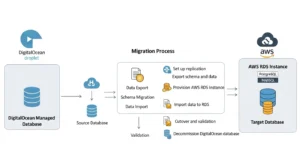
PostgreSQL: pg_dump + RDS Import
Step 1: Create the RDS PostgreSQL instance (match your DO Postgres version exactly):
Copy
aws rds create-db-instance \
–db-instance-identifier my-app-db \
–db-instance-class db.t3.medium \
–engine postgres \
–engine-version 16.3 \
–master-username dbadmin \
–master-user-password YOUR_SECURE_PASSWORD \
–allocated-storage 100 \
–storage-type gp3 \
–multi-az \
–vpc-security-group-ids sg-0123456789abcdef0
Step 2: Export from DigitalOcean managed database:
Copy
# Get your DO database connection string from the control panel
pg_dump \
–host=db-postgresql-nyc3-XXXXX.db.ondigitalocean.com \
–port=25060 \
–username=doadmin \
–format=custom \
–file=mydb_backup.dump \
–no-acl \
–no-owner \
mydb
Step 3: Restore to AWS RDS:
Copy
# Restore schema first
pg_restore \
–host=my-app-db.XXXXX.us-east-1.rds.amazonaws.com \
–port=5432 \
–username=dbadmin \
–dbname=mydb \
–schema-only \
mydb_backup.dump
# Then restore data
pg_restore \
–host=my-app-db.XXXXX.us-east-1.rds.amazonaws.com \
–port=5432 \
–username=dbadmin \
–dbname=mydb \
–data-only \
—jobs=4 \
mydb_backup.dump
MySQL: mysqldump + RDS Import
Copy
# Export from DigitalOcean
mysqldump \
-h db-mysql-nyc3-XXXXX.db.ondigitalocean.com \
-P 25060 \
-u doadmin \
-p \
–single-transaction \
–routines \
–triggers \
mydb > mydb_backup.sql
# Import to RDS
mysql \
-h my-app-db.XXXXX.us-east-1.rds.amazonaws.com \
-P 3306 \
-u dbadmin \
-p \
mydb < mydb_backup.sql
Using AWS DMS for Zero-Downtime Database Migration
For production databases that cannot tolerate a maintenance window, use AWS Database Migration Service (DMS) with CDC (Change Data Capture) mode:
- Create a DMS replication instance in the same VPC as your target RDS
- Create a source endpoint pointing to your DigitalOcean managed database (DigitalOcean supports connections from external IPs — whitelist the DMS replication instance IP in your DO database’s trusted sources)
- Create a target endpoint pointing to your RDS instance
- Run a Full Load + CDC migration task — DMS performs the initial bulk copy, then continuously replicates changes
- When lag drops to 0, update your application’s DATABASE_URL, confirm application is writing to RDS, then terminate the DMS task
Redis: ElastiCache as DigitalOcean Redis Replacement
For Redis, the simplest migration is a cold cutover (Redis data is typically ephemeral or can be regenerated):
Copy
# If you need to migrate Redis data: on source Droplet
redis-cli -h DO_REDIS_HOST -p 25061 -a YOUR_AUTH_TOKEN –tls BGSAVE
# Wait for save to complete, then copy RDB file to EC2 and load into ElastiCache
# OR: accept cache cold start and update APPLICATION_REDIS_URL to ElastiCache endpoint
Migrate DigitalOcean Kubernetes to Amazon EKS
Export Kubernetes Manifests from DOKS
Copy
# Authenticate to DOKS cluster
doctl kubernetes cluster kubeconfig save my-cluster
# Export all namespaced resources
for ns in $(kubectl get ns -o jsonpath=‘{.items[*].metadata.name}’); do
kubectl get all,configmap,secret,pvc,ingress -n $ns \
-o yaml > exported-manifests-${ns}.yaml
done
Set Up EKS Cluster
Copy
# Install eksctl
brew install eksctl # macOS
# Create EKS cluster (replace region and node group as needed)
eksctl create cluster \
–name my-app-cluster \
–region us-east-1 \
–nodegroup-name standard-nodes \
–node-type t3.medium \
–nodes 3 \
–nodes-min 2 \
–nodes-max 10 \
–managed
Velero for Kubernetes Workload Migration
Velero backs up DOKS workloads (including persistent volumes via CSI snapshots) and restores them to EKS — the cleanest migration path for stateful applications:
Copy
# Install Velero on source DOKS cluster with DO Spaces backend
velero install \
–provider aws \
–plugins velero/velero-plugin-for-aws:v1.9.0 \
–bucket YOUR_DO_SPACES_BUCKET \
–secret-file ./do-credentials \
–backup-location-config \
region=nyc3,s3ForcePathStyle=true,s3Url=https://nyc3.digitaloceanspaces.com
# Create a full cluster backup
velero backup create full-cluster-backup \
–include-namespaces=“*” \
—wait
# Switch kubeconfig to EKS cluster, install Velero with S3 backend, then restore
velero restore create –from-backup full-cluster-backup —wait
Note: After restoring to EKS, update image registry references if you were using DigitalOcean Container Registry (DOCR) — push images to Amazon ECR and update image: references in your Deployments.
DigitalOcean to AWS Cost Comparison 2026
When AWS Is Cheaper Than DigitalOcean
- Reserved Instances / Savings Plans (1–3 year): Up to 72% off EC2 on-demand prices, making EC2 cheaper than equivalent Droplets for stable, predictable workloads
- S3 Intelligent-Tiering: For data accessed infrequently, archival to S3 Glacier Deep Archive costs $0.00099/GB vs $0.02/GB on Spaces
- Spot Instances: Up to 90% off on-demand — ideal for batch jobs, CI/CD workers, and ML training
- AWS Activate credits: $100k in credits completely eliminates Year 1 infrastructure cost for qualifying startups
- Lambda for low-traffic APIs: Pay only for invocations — can be dramatically cheaper than a running Droplet for sub-100 req/day workloads
When DigitalOcean Is Still the Better Choice
Let’s be direct: DigitalOcean wins in several scenarios:
- High egress workloads (media streaming, large file downloads) — DO charges $0.01/GB vs AWS $0.09/GB — that’s a 9× difference that can make AWS prohibitively expensive for bandwidth-heavy applications
- Simple VPS workloads (personal projects, small SaaS, dev environments) — a $12/month DO Droplet requires less management overhead than an equivalently-priced EC2 instance with VPC, IAM, security groups, and CloudWatch to configure
- Predictable billing — DigitalOcean’s flat-rate model never surprises you; AWS bills can spike with misconfigured NAT Gateway, data transfer, or forgotten resources
- Learning curve — AWS has 200+ services and a configuration surface area that requires real investment to master. For a 2-person startup, DigitalOcean’s simplicity has meaningful value
How to Reduce AWS Costs with Savings Plans
After 2–4 weeks of steady-state AWS usage, analyse your EC2 costs in Cost Explorer and purchase Compute Savings Plans:
Copy
# View Savings Plans recommendations via AWS CLI
aws savingsplans describe-savings-plans-offering-rates \
–savings-plans-types COMPUTE_SP \
–product-types EC2 \
–region us-east-1
# Or use the Cost Explorer Savings Plans recommendations UI in the console
For a startup running the equivalent of 3× t3.medium EC2 instances full-time, a 1-year Compute Savings Plan reduces the bill from ~$90/month on-demand to approximately ~$58/month — crossing below the equivalent DigitalOcean Droplet cost.
Common Issues When Migrating from DigitalOcean to AWS
- IP address changes breaking application configs DigitalOcean Floating IPs and Droplet IPs will change. Before migrating, audit every place your old IP appears: application config files, database firewall rules, third-party webhooks, SMTP relay whitelists, and SSL certificate SANs. Create an Elastic IP in AWS and update these before DNS cutover.
- AWS Security Groups vs DigitalOcean Firewalls DigitalOcean’s Cloud Firewall uses named sources (“Droplets in tag web-tier”). AWS Security Groups use CIDR blocks and Security Group IDs. Rewrite your firewall rules explicitly. A common mistake: DigitalOcean allows all outbound traffic by default; AWS Security Groups also allow all outbound by default but NACLs are stateless — ensure your NACLs permit return traffic on ephemeral ports (1024–65535).
- SSH key management differences DigitalOcean stores SSH public keys globally and attaches them at Droplet creation. AWS uses EC2 Key Pairs (per-region). Create a new Key Pair in AWS, add the corresponding public key to ~/.ssh/authorized_keys on your EC2 instance manually, or use EC2 Instance Connect / AWS Systems Manager Session Manager for keyless access.
- Region selection and latency considerations Don’t just pick the cheapest region — pick the closest to your primary user base. Use curl with timing to validate:
Copy
# Measure latency to multiple AWS regions from your users’ locations
for region in us-east-1 eu-west-1 ap-southeast-1; do
echo -n “$region: “
curl -o /dev/null -s -w “%{time_total}s\n” \
https://ec2.$region.amazonaws.com/
done
- Missing services in target region Not all AWS services are available in all regions. Verify that RDS, EKS, Elastic Beanstalk, ElastiCache, and your specific EC2 instance types are all available in your chosen region before starting migration.
Post-Migration Checklist — After Moving to AWS
- DNS TTL restored to standard value (300–3600s) after cutover
- All application config (DATABASE_URL, REDIS_URL, S3_ENDPOINT) updated to AWS endpoints
- AWS Budgets alert configured at 80% and 100% of monthly spend target
- CloudWatch alarms set for EC2 CPU >80%, RDS storage <20%, and ALB 5XX error rate >1%
- GuardDuty enabled in all active regions for threat detection
- CloudTrail enabled with logs shipped to S3 for audit trail
- S3 bucket versioning enabled on all buckets containing application data
- RDS automated backups configured with minimum 7-day retention
- IAM roles assigned to EC2 instances — no hardcoded AWS credentials in application code
- AWS Activate credits applied to the account if not already done
- DigitalOcean resources decommissioned after 72-hour parallel-run validation window
- Savings Plans / Reserved Instances purchased after 2–4 weeks of real usage data
- EC2 Auto Scaling group configured if Droplets were manually scaled on DigitalOcean
- SSL certificates migrated to AWS Certificate Manager (ACM) for free auto-renewing TLS
Frequently Asked Questions
Q1: Is AWS better than DigitalOcean?
It depends on your scale and requirements. DigitalOcean is simpler, cheaper for high-egress workloads, and better for teams that want predictable billing with minimal configuration overhead. AWS is better when you need global reach across 39 regions, compliance certifications (HIPAA, FedRAMP, PCI), advanced services (SageMaker, Kinesis, Bedrock), or enterprise networking. For startups above Series A with growing engineering teams, AWS is almost always the right long-term choice.
Q2: How do I migrate a Droplet to AWS EC2?
Use AWS Application Migration Service (MGN) for the most reliable approach — install the replication agent on your Droplet, let MGN replicate continuously to AWS, launch a test instance, validate, then execute cutover. Alternatively, use rsync to copy application files to a fresh EC2 instance for simple stateless workloads. Both methods are detailed with CLI commands in the step-by-step section above.
Q3: How do I migrate DigitalOcean Spaces to Amazon S3?
Use Rclone — configure both DO Spaces and AWS S3 as remotes, then run rclone sync do-spaces:my-bucket aws-s3:my-bucket –checksum. For large buckets (>1 TB), AWS DataSync provides managed, parallelised transfer with built-in verification. DigitalOcean Spaces is S3-compatible, so no data transformation is required during migration.
Q4: What is the cost difference between DigitalOcean and AWS?
On-demand AWS EC2 is approximately 30–50% more expensive than equivalent DigitalOcean Droplets. Egress bandwidth is 9× more expensive on AWS ($0.09/GB vs $0.01/GB). However, AWS Reserved Instances (1-year) bring EC2 costs below Droplet pricing for equivalent resources. For qualifying startups, AWS Activate provides up to $100,000 in credits, eliminating Year 1 cost differences entirely.
Q5: Can I use Terraform to migrate from DigitalOcean to AWS?
Yes — and it’s the recommended approach for recreating infrastructure. Write your AWS target state in Terraform (VPC, subnets, security groups, EC2, RDS, EKS) and use terraform apply to provision it. Use terraform import to bring any manually-created AWS resources under Terraform management. Terraform supports both the DigitalOcean provider and the AWS provider, allowing you to manage both environments in parallel during migration.
Q6: How long does a DigitalOcean to AWS migration take?
For a simple single-server application (1 Droplet, 1 database): 1–3 days. For a mid-size SaaS (5–10 Droplets, managed database, Spaces, Kubernetes): 1–3 weeks. The database migration and DNS cutover are the longest-pole items. Using AWS MGN’s continuous replication, the actual cutover downtime is typically 5–15 minutes regardless of server size.
Q7: What is the AWS equivalent of DigitalOcean App Platform?
The closest equivalents are AWS Elastic Beanstalk (git-push deployment for web apps, managed EC2 + load balancer + auto-scaling) or AWS App Runner (fully managed container deployment, similar to App Platform’s container mode). For container-based deployments, ECS Fargate gives more control. For fully serverless, AWS Lambda + API Gateway is the cloud-native option.
Q8: How do I migrate my DigitalOcean database to AWS RDS?
For PostgreSQL: use pg_dump –format=custom to export, then pg_restore to import into an RDS PostgreSQL instance with the same major version. For MySQL: mysqldump –single-transaction for a consistent export, then import via mysql. For zero-downtime migration: use AWS DMS in Full Load + CDC mode — whitelist the DMS replication instance IP in your DigitalOcean database’s trusted sources, configure source and target endpoints, and run continuous replication until application cutover.
Conclusion — Making the Move from DigitalOcean to AWS
Migrating from DigitalOcean to AWS is about scaling your infrastructure, meeting enterprise requirements, and unlocking the full power of cloud-native services. With mature tooling and zero-downtime migration patterns, the transition can be smooth and predictable, letting your teams focus on innovation rather than operations.
If you are also modernizing other parts of your infrastructure, check out our guide on VMware to AWS migration
At GoCloud, we help businesses plan and execute cloud migrations with minimal disruption, clear cost visibility, and strategies built for long-term scalability.
Apply for AWS Activate credits before you start — $100k in credits is a material advantage that makes the first-year cost comparison decisively favour AWS. Then work through the service mapping table, write your target architecture in Terraform, and run your first pilot migration on a non-critical Droplet this week.