

Why Migrate Physical Servers to AWS in 2026?
The Financial Case Eliminating CAPEX Hardware Costs
Every physical server carries five cost layers most IT budgets undercount: hardware purchase (typically $5,000–$25,000 per server), a 3–5 year refresh cycle, maintenance contracts (15–20% of hardware cost annually), data centre facilities (power, cooling, physical space), and the operational staff hours required to keep bare metal running. AWS’s Cloud Value Framework analysis documents a real-world comparison: 20 data centre racks costing $2,250,000 in facilities costs become a line item fully absorbed into EC2 pricing post-migration.
AWS infrastructure is also up to 4.1× more energy efficient than equivalent on-premises infrastructure and can reduce workloads’ carbon footprint by up to 96% — a material factor for organisations with ESG reporting obligations.
Overall, AWS states you can reduce your total cost of ownership (TCO) by up to 40% by migrating to AWS — with the effect compounding over time as Reserved Instances and Savings Plans further reduce steady-state compute costs by 40–72%.
Scalability That Physical Servers Can’t Match
A physical server has a fixed ceiling: the CPU, RAM, and storage installed in it. Scaling up requires procurement cycles (weeks to months), rack space, and capital approval. On AWS, you scale vertically in minutes by changing EC2 instance type, and scale horizontally to hundreds of instances in seconds via Auto Scaling groups — with no hardware procurement, no rack space, and no capital expenditure.
143+ AWS Compliance Certifications — Security Simplified
AWS holds 143 compliance certifications including HIPAA, PCI-DSS Level 1, FedRAMP High, SOC 1/2/3, ISO 27001/17/18, and GDPR data residency commitments. Physical servers in a corporate data centre inherit none of these unless explicitly audited and certified — an expensive, time-consuming process. Migrating to AWS means inheriting a pre-audited infrastructure foundation.
Access to 200+ AWS Services Post-Migration
The moment your workloads land on EC2, your team gains access to Amazon RDS (managed databases), SageMaker (ML), Kinesis (streaming), Lambda (serverless), EKS (Kubernetes), Bedrock (generative AI), and 190+ additional services that physical infrastructure fundamentally cannot provide. This is the strategic multiplier that makes migration more than a cost exercise.
Physical Servers vs. AWS Cloud — Comparison Table
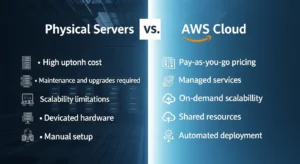
| Dimension | Physical Servers | AWS Cloud | Advantage |
| Average utilisation | <15% (451 Research) | Elastic — right-size to 70–90% | AWS |
| Hardware refresh | Every 3–5 years (CAPEX) | Never (included in service) | AWS |
| Provisioning time | Weeks–months | Minutes | AWS |
| Geographic reach | Single data centre | 39 regions / 123 AZs | AWS |
| Compliance certifications | Requires manual audit | 143 pre-certified | AWS |
| Disaster recovery | Complex, expensive secondary site | Multi-AZ / multi-region built-in | AWS |
| Energy efficiency | Baseline | Up to 4.1× more efficient | AWS |
| Pricing model | CAPEX (large upfront) | OPEX (pay-per-second) | AWS |
| Upfront cost predictability | High (fixed) | Variable (requires FinOps discipline) | Physical (initially) |
What Is Physical-to-Cloud Migration?
Featured Snippet Definition: Physical-to-cloud migration (also called P2V — physical-to-virtual — migration) is the process of moving workloads from bare metal on-premises servers to virtual compute instances running in a cloud provider such as Amazon Web Services (AWS). It involves replicating server disk images, configurations, and data to AWS EC2 instances, then cutting over production traffic with minimal or zero downtime using tools like AWS Application Migration Service (MGN).
Understanding Migration Costs and Expected ROI
Assessment & Planning Costs ($2,000–$15,000)
A thorough migration assessment — server inventory, dependency mapping, TCO analysis, and wave planning — is a non-optional investment. Skipping it is the primary cause of budget overruns and failed migrations. Costs typically break down as:
- DIY using AWS Migration Hub + Application Discovery Service: $0 (service is free) + internal staff time (~40–120 hours for a 20-server environment)
- AWS Migration Evaluator (professional assessment): Free directional estimate; detailed engagement varies
- Third-party migration consultancy: $2,000–$15,000 depending on estate size
Migration Tools & Services Costs ($3,000–$10,000)
- AWS Application Migration Service (MGN): Free to use — you pay only for the EC2 replication instances that run during migration (~$50–$100/month per server being replicated, for typically 4–8 weeks)
- AWS Direct Connect setup: $200–$800/month for a dedicated circuit (optional — see connectivity section below)
- Professional services for execution: $3,000–$10,000 for a 10–50 server migration engagement
Training Costs ($500–$2,000 per person)
Your team needs AWS fluency before cutover day. Budget for:
- AWS Cloud Practitioner or Solutions Architect Associate certification training: $300–$500 per person
- AWS Migration competency-specific training: $500–$1,500 per senior engineer
- Ongoing AWS Skill Builder subscriptions: $29/month per user
Ongoing AWS Operating Costs vs. Hardware TCO
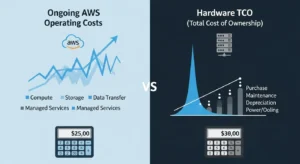
| Cost Category | Physical Server (Annual) | AWS Equivalent (Annual) | Savings |
| Hardware depreciation ($15k server / 5yr) | $3,000/server | $0 | 100% |
| Hardware maintenance contract | $450–$600/server | $0 | 100% |
| Data centre rack space + power | $2,000–$5,000/server | $0 (in EC2 price) | 100% |
| Operating system licensing | $400–$800/server | $0 (Amazon Linux) or included in EC2 | 100% |
| EC2 compute (m5.xlarge, 1yr RI) | $0 | ~$730/year | — |
| EBS storage (500GB gp3) | $0 | ~$400/year | — |
| Total per-server annual cost | $6,000–$10,000 | $1,200–$2,200 | 67–80% |
First-Year Reality Check: First-year cloud costs typically run 10–25% higher than steady-state due to migration overlap (running both environments simultaneously), licence portability assessments, and the learning curve. Budget this explicitly — then plan for the savings trajectory from Year 2 onward.
Common Challenges When Migrating Physical Servers to AWS
Accurately Forecasting Cloud Costs — Avoid Bill Shock
The most common post-migration surprise is an AWS bill 30–50% above forecast. Root causes: NAT Gateway data transfer charges ($0.045/GB processed), unplanned data transfer between AZs ($0.01/GB), EBS IOPS provisioning beyond what workloads need, and retained resources from the migration period left running. Mitigate with AWS Budgets alerts from day one and AWS Cost Explorer weekly reviews.
Minimizing Downtime During Cutover
Physical servers can’t live-migrate (unlike VMware VMs with vMotion). The answer is AWS MGN’s continuous block-level replication — your source server replicates continuously to a staging area in AWS, keeping the delta lag under 60 seconds at steady state. When you trigger cutover, only the lag period (typically seconds to minutes) represents actual downtime. For zero-tolerance workloads, a read-only maintenance page can bridge the gap.
Security & Compliance in a Shared Responsibility Model
AWS secures the underlying infrastructure; you are responsible for securing your workloads on top of it. This means configuring Security Groups (stateful firewall rules), NACLs (stateless subnet-level filtering), IAM roles with least-privilege policies, and enabling GuardDuty, CloudTrail, and Security Hub from day one. Many teams migrate their servers but neglect to migrate their security posture — the result is a workload more exposed in the cloud than it was on-prem.
Bridging the Cloud Skills Gap on Your Team
A sysadmin who can manage Linux on bare metal can run the same workload on EC2 — but they’ll need AWS-specific knowledge for IAM, VPC networking, EBS volume management, CloudWatch alarms, and cost governance. Invest in training before the migration programme begins, not after.
Legacy Application Compatibility on EC2
Applications tightly coupled to physical hardware characteristics — specific BIOS versions, hardware-based licensing dongles, or NUMA topology dependencies — require extra planning. Most standard server workloads (web servers, application servers, databases, file servers) migrate without modification. Identify hardware-dependent applications in the assessment phase and either resolve the dependency or plan a replatform.
Step-by-Step Framework: How to Migrate Physical Servers to AWS
Step 1 — Discover and Assess Your Server Environment
Before you migrate a single byte, you need a complete, accurate inventory of your estate. Incomplete discovery is the #1 cause of migration wave failures.
Install the AWS Application Discovery Service (ADS) agent on each source server:
Copy
# Linux — download and install ADS agent
wget https://s3.us-west-2.amazonaws.com/aws-discovery-agent.us-west-2/linux/latest/aws-discovery-agent.tar.gz
tar -xzf aws-discovery-agent.tar.gz
sudo bash install -r us-east-1 -k ACCESS_KEY_ID -s SECRET_ACCESS_KEY
# Windows — run PowerShell as Administrator
# Download and run the MSI installer from AWS console
# Or use AWS Systems Manager Run Command for domain-joined servers
The ADS agent collects: CPU/memory utilisation (time-series), installed software, network connections (which servers talk to which), and disk I/O rates. After 24–72 hours of data collection, AWS Migration Hub’s network visualisation generates server dependency maps — the critical input for grouping servers into migration waves.
Classify each workload by:
- Business criticality (Mission-critical / Business-important / Low-risk)
- Migration strategy (Rehost / Replatform / Refactor / Retire / Retain)
- Software licensing portability (especially Windows Server, SQL Server, Oracle)
- Dependency group (servers that must migrate together)
Step 2 — Build Your Business Case
Use the AWS Migration Evaluator (formerly TSO Logic) to generate a directional TCO comparison using your actual ADS-collected utilisation data. The output is a report showing your current on-premises spend versus projected AWS costs at right-sized instance types — the document your CFO needs to approve the programme.
Supplement with the AWS Pricing Calculator for detailed service-level estimates. Model three scenarios: on-demand (worst case), 1-year Reserved Instances, and 3-year Savings Plans (best case long-term).
Step 3 — Choose Your Migration Strategy
| Strategy | When to Use | AWS Services | Timeline |
| Rehost (Lift & Shift) | Application works as-is on EC2; fastest to migrate | AWS MGN → EC2 | 2–6 weeks/wave |
| Replatform | Minor cloud optimisations (file server → FSx; DB → RDS) | AWS MGN + DMS + DataSync | 4–12 weeks |
| Refactor | Modernise to containers (ECS/EKS) or serverless (Lambda) | Docker + ECS/EKS or Lambda | 2–6 months |
| Retire | Server is unused or being replaced by SaaS | Decommission | Immediate |
| Retain | Compliance or hardware dependency prevents migration | AWS Outposts (hybrid) | N/A |
For most physical server migrations, Rehost via AWS MGN is the correct starting point. You can replatform and refactor specific workloads in subsequent waves after the estate is safely in AWS.
Step 4 — Design Your AWS Landing Zone
A landing zone is your foundational AWS account structure and networking configuration. Provisioning it correctly before migration prevents costly rework.
Multi-account structure (using AWS Control Tower):
- Management account: Billing, consolidated SCPs only — no workloads
- Production account: Live migrated workloads
- Non-production account: Dev, staging, UAT
- Security/Log archive account: CloudTrail logs, GuardDuty findings
VPC design for a typical migration:
VPC: 10.0.0.0/16
├── Public subnets (10.0.1.0/24, 10.0.2.0/24) — ALB, NAT Gateway
├── Private subnets (10.0.10.0/24, 10.0.20.0/24) — EC2 instances
└── DB subnets (10.0.100.0/24, 10.0.200.0/24) — RDS instances
Connectivity to on-premises during migration:
| Option | Cost | Bandwidth | Use Case |
| AWS Site-to-Site VPN | ~$36/month ($0.05/hr) | Variable (internet-dependent) | Most physical server migrations; MGN uses HTTPS anyway |
| AWS Direct Connect | $200–$800/month + port fees | 1 Gbps or 10 Gbps (dedicated) | Large data volume (>50 TB), latency-sensitive hybrid workloads |
| MGN over internet (no VPN) | $0 extra | Dependent on uplink | Suitable for servers with good outbound internet connectivity |
Practical guidance: For MGN replication traffic, a Site-to-Site VPN or direct internet HTTPS is sufficient — MGN encrypts all replication traffic over TLS. Reserve the Direct Connect investment for post-migration hybrid connectivity if you’re maintaining on-premises systems long-term.
Step 5 — Migrate Using AWS Application Migration Service (MGN)
Important: AWS Server Migration Service (SMS) is officially deprecated. AWS MGN is the only supported AWS-native service for physical and virtual server migration. Do not use SMS for new migration projects.
AWS MGN uses continuous block-level replication — not snapshot-based like the deprecated SMS. This means changes on the source server are continuously streamed to a replication staging area in AWS, keeping the AWS copy within seconds of the source at all times.
a) Set Up MGN in Your AWS Account
In the AWS Management Console → Application Migration Service → Get Started. MGN will automatically create an IAM service-linked role and a default replication configuration.
Copy
# Create a replication configuration template via CLI (optional — can be done in console)
aws mgn create-replication-configuration-template \
–replication-server-instance-type t3.small \
–replication-servers-security-groups-i-ds sg-XXXXXXXXXX \
–staging-area-subnet-id subnet-XXXXXXXXXX \
–staging-area-tags Key=Purpose,Value=MGN-Replication \
–use-dedicated-replication-server false \
–bandwidth-throttling 0
b) Install the AWS Replication Agent on Source Servers
Linux (Ubuntu/CentOS/RHEL):
Copy
# Download and install the replication agent
# Replace REGION, ACCESS_KEY_ID, SECRET_ACCESS_KEY with your values
wget -O ./aws-replication-installer-init \
https://aws-application-migration-service-REGION.s3.amazonaws.com/latest/linux/aws-replication-installer-init
chmod +x aws-replication-installer-init
sudo ./aws-replication-installer-init \
–region us-east-1 \
–aws-access-key-id YOUR_ACCESS_KEY_ID \
–aws-secret-access-key YOUR_SECRET_ACCESS_KEY \
–no-prompt
Windows Server (PowerShell as Administrator):
Copy
# Download the Windows replication agent installer
Invoke-WebRequest `
-Uri “https://aws-application-migration-service-us-east-1.s3.amazonaws.com/latest/windows/AwsReplicationWindowsInstaller.exe” `
-OutFile “.\AwsReplicationWindowsInstaller.exe”
# Install silently
.\AwsReplicationWindowsInstaller.exe `
–region us-east-1 `
–aws-access-key-id YOUR_ACCESS_KEY_ID `
–aws-secret-access-key YOUR_SECRET_ACCESS_KEY `
–no-prompt
After installation, the agent appears in the MGN console under Source Servers. Initial replication (full disk sync) begins immediately. Status progresses through: Not ready → Initial sync → Ready for testing.
c) Configure Launch Settings Per Server
Before launching test instances, configure each source server’s launch settings in the MGN console:
- Target instance type: Match source specs as a starting point (right-size after migration)
- Target subnet and security groups: Select the private subnet and appropriate security group
- IAM instance profile: Assign the role your application needs (e.g., SSM access, S3 read)
- Disk encryption: Enable EBS encryption with KMS CMK
- Tags: Apply consistent tagging for cost allocation and resource management
d) Launch Test Instances and Validate
Click “Launch Test Instances” for each server. MGN creates an EC2 instance from the current replicated state without interrupting source server operations or replication. Perform full validation:
Copy
# On the test EC2 instance — verify service functionality
systemctl status nginx # or httpd, tomcat, etc.
systemctl status postgresql # or mysql, mssql
netstat -tlnp | grep LISTEN # confirm all expected ports are open
# Test application endpoint
curl -I http://localhost/health # or appropriate health check URL
# Verify disk layout matches source
lsblk
df -h
Validate: application functionality, database connectivity, external API connections, logging pipelines, and monitoring agent (CloudWatch) installation.
e) Schedule Cutover Window
Once test launch validation passes, mark the server as “Ready for Cutover” in MGN. Communicate the maintenance window to stakeholders. Best practice:
- Schedule during the lowest-traffic period (typically 2–4 AM Sunday for most business applications)
- Pre-stage the cutover: lower DNS TTL to 60 seconds 48 hours before cutover
- Prepare rollback runbook: keep source server powered on for 72 hours post-cutover
f) Execute Cutover and Update DNS
Click “Launch Cutover Instances” in MGN. MGN finalises the replication, shuts down the replication agent, and launches the production EC2 instance. Typical elapsed time: 5–15 minutes.
Copy
# Immediately update your DNS records (Route 53 example)
aws route53 change-resource-record-sets \
–hosted-zone-id YOUR_ZONE_ID \
–change-batch ‘{
“Changes”: [{
“Action”: “UPSERT”,
“ResourceRecordSet”: {
“Name”: “app.yourdomain.com”,
“Type”: “A”,
“TTL”: 60,
“ResourceRecords”: [{“Value”: “NEW_EC2_PRIVATE_IP”}]
}
}]
}’
# Or for public-facing with Elastic IP:
# Assign the Elastic IP to the new EC2 instance — DNS records using EIP update automatically
aws ec2 associate-address \
–instance-id i-XXXXXXXXXXXXXXXXX \
–allocation-id eipalloc-XXXXXXXXXXXXXXXXX
g) Validate, Then Decommission Source
Monitor the migrated EC2 instance for 72 hours. Once confirmed stable, finalise the server in MGN (“Mark as Archived”), then proceed to decommission the physical server. Do not physically decommission until you have confirmed:
- Application is serving production traffic from AWS
- All database connections have been updated
- Monitoring confirms no errors in 72-hour window
- Backups are running successfully on the EC2 instance
Step 6 — Post-Migration Optimization
The migration is not the end — it is the beginning of ongoing cost and performance optimization.
- Rightsize with AWS Compute Optimizer: Enable the free service and wait 14 days for utilisation analysis. Compute Optimizer provides specific EC2 instance type recommendations; moving from an over-provisioned m5.xlarge to an m5.large based on actual utilisation data typically reduces compute costs by 25–40%.
- Purchase Reserved Instances or Savings Plans after 2–4 weeks of steady-state usage data — reduce costs by 40–72% versus on-demand.
- Enable Auto Scaling for any workloads with variable traffic — you’re no longer constrained by physical server capacity.
- Set up CloudWatch dashboards with alarms for CPU > 80%, memory (via CloudWatch agent), disk I/O, and application error rates.
- Run AWS Trusted Advisor (Security and Cost Optimization checks) monthly.
AWS Application Migration Service (MGN) — Deep Dive
What Is AWS MGN and How Does It Work?
AWS Application Migration Service (MGN) operates via a lightweight replication agent installed on each source server. The agent reads the raw block device (disk sectors) and transmits changes over an encrypted TLS connection to a dedicated replication server running in your AWS staging subnet. The replication server writes the incoming blocks to Amazon EBS volumes that mirror the source disk layout exactly.
The replication pipeline maintains a continuously-updated copy of the source server, with steady-state lag typically under 60 seconds. When you initiate a Test Launch or Cutover Launch, MGN:
- Takes a point-in-time snapshot of the current replicated EBS volumes
- Launches an EC2 instance from those volumes
- Runs automated conversion scripts to make the image bootable on AWS
- Starts the EC2 instance in your configured subnet and security group
The source server continues running during test launches. Only the final cutover stops replication and launches the production instance.
MGN vs. AWS Server Migration Service (SMS) — Key Differences
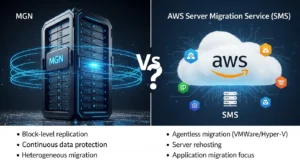
| Dimension | AWS MGN ✅ (Current) | AWS SMS ❌ (Deprecated) |
| Status | Active — AWS recommended service | Deprecated — no new migrations |
| Replication method | Continuous block-level | Snapshot-based (periodic) |
| Minimum downtime | Seconds to minutes | Hours (snapshot cycle dependent) |
| Source servers | Physical, virtual (VMware, Hyper-V), cloud | VMware VMs only (via vCenter connector) |
| Agent required | Yes (lightweight, ~5 MB) | Yes (VMware connector appliance) |
| Physical server support | ✅ Yes — bare metal fully supported | ❌ No |
| Automated testing | ✅ Launch test instances before cutover | ❌ Limited |
Supported Operating Systems for MGN
Windows: Windows Server 2012 R2, 2016, 2019, 2022, 2025 (all 64-bit) Linux: Ubuntu 16.04/18.04/20.04/22.04/24.04; RHEL 6/7/8/9; CentOS 6/7/8; Debian 8/9/10/11; SUSE Linux Enterprise Server 11/12/15; Amazon Linux 1/2/2023; Oracle Linux 6/7/8
Note: CentOS 8 reached end-of-life in December 2021 — if you’re still running it on physical servers, plan to migrate to AlmaLinux, Rocky Linux, or RHEL 8/9 as part of the AWS migration.
MGN Bandwidth and Performance Considerations
MGN replication uses TCP port 443 (HTTPS/TLS) outbound from the source server to AWS — no inbound ports need to be opened on the physical server, and no VPN is required (though one is recommended for security best practice). Bandwidth consumed during initial sync is proportional to disk usage, not disk size:
- 100 GB used disk: Initial sync typically transfers 80–90 GB (compressed) at your available uplink speed
- At 100 Mbps uplink: A 100 GB initial sync completes in approximately 1.5–2 hours
- Steady-state replication (delta changes only): typically 1–10 Mbps for an active application server
- Bandwidth throttling: Configurable in the replication template — limit to prevent impact on production internet traffic during business hours
Windows Server Migration to AWS — Special Considerations
Windows Licensing on AWS (BYOL vs. License Included)
This is one of the most consequential decisions in a Windows Server migration and the one most frequently handled incorrectly.
License Included (LI): AWS bundles the Windows Server licence cost into the EC2 hourly rate. No licence tracking, no Software Assurance requirements. Available on all standard EC2 instance types (shared tenancy). This is the simplest path for most organisations.
Bring Your Own Licence (BYOL): Bring existing Windows Server licences (with Software Assurance) to AWS. Critical requirement: BYOL requires EC2 Dedicated Hosts — you cannot run BYOL Windows on shared-tenancy instances. Dedicated Hosts have a fixed hourly charge ($1.499/hr for a host that runs 4× m5.xlarge equivalent) that must be factored into your TCO analysis.
⚠️ Critical 2025 change: Windows Server 2022, 2025, and future versions can no longer be brought under BYOL on AWS or Google Cloud. For these versions, License Included is the only supported model. Organisations with existing BYOL arrangements for Windows Server 2016 or 2019 can continue those — but any upgrade to Server 2022/2025 must use LI.
SQL Server on EC2 vs. RDS:
- EC2 with SQL Server (LI or BYOL): Full control, requires you to manage patching, backups, HA
- Amazon RDS for SQL Server: Managed service — automated backups, multi-AZ, patching handled by AWS; supports SQL Server 2016–2022 with SE and EE editions; adds ~20–35% premium over EC2-only costs but eliminates DBA overhead for standard workloads
Active Directory Integration with AWS Directory Service
If your physical servers are joined to an on-premises Active Directory domain, you have three post-migration options:
- Extend on-premises AD to AWS via a Site-to-Site VPN: Place domain controllers on EC2 in AWS, extend the existing AD forest. Simplest short-term path.
- AWS Managed Microsoft AD: AWS operates AD domain controllers on your behalf in two AZs. Supports trust relationships with existing on-premises AD. Best for organisations exiting the data centre entirely.
- AD Connector: A proxy that redirects authentication requests to your existing on-premises AD. Useful for a hybrid period but creates a dependency on on-premises connectivity.
SQL Server on EC2 vs. Amazon RDS for SQL Server
For organisations replatforming SQL Server databases as part of the migration, Amazon RDS for SQL Server provides automated backups, point-in-time recovery, multi-AZ failover, and automated minor version patching — eliminating the DBA overhead of self-managed SQL Server on EC2. Use the AWS Schema Conversion Tool (SCT) if you’re also considering migrating to Amazon Aurora PostgreSQL to eliminate Microsoft licensing costs entirely.
Linux Server Migration to AWS — Special Considerations
Ubuntu, CentOS, RHEL on EC2
All major Linux distributions run natively on EC2. Post-migration, consider switching to Amazon Linux 2023 for new workloads — it is free, optimised for AWS Nitro instances, provides long-term support, and includes the AWS CLI, SSM Agent, and CloudWatch Agent pre-installed.
For RHEL workloads, AWS offers RHEL License Included AMIs (licence bundled in EC2 price) — an alternative to BYOS (Bring Your Own Subscription) that eliminates Red Hat subscription management overhead. For CentOS 8 systems, plan migration to AlmaLinux 8 or Rocky Linux 8 on EC2 for a drop-in-compatible RHEL-based alternative.
NFS Shares → Amazon EFS Migration
Physical file servers serving NFS shares to Linux clients migrate to Amazon Elastic File System (EFS) — a fully managed, NFS-compatible (NFSv4.1/4.0) elastic file system:
Copy
# On target EC2 instances — install NFS client and mount EFS
sudo apt-get install -y nfs-common # Ubuntu/Debian
# OR
sudo yum install -y nfs-utils # RHEL/CentOS/Amazon Linux
# Mount EFS (replace FILE_SYSTEM_ID and REGION)
sudo mount -t nfs4 \
-o nfsvers=4.1,rsize=1048576,wsize=1048576,hard,timeo=600,retrans=2 \
FILE_SYSTEM_ID.efs.REGION.amazonaws.com:/ \
/mnt/efs
# Migrate data from on-premises NFS to EFS using AWS DataSync
# Install DataSync agent on a VM near the source NFS server
# Configure source (NFS) and destination (EFS) locations
# Run migration task with checksum verification
For Windows file shares (SMB), use Amazon FSx for Windows File Server — a fully managed Windows-native file system that supports DFS namespaces, Active Directory integration, and Windows ACLs.
Apache/Nginx Configuration After Migration
After MGN cutover, your Nginx or Apache configuration migrates as-is. However, two common post-migration adjustments are required:
- Update bind addresses: If your web server was bound to the physical server’s IP address (listen 192.168.1.50:443), update to listen 0.0.0.0:443 or the EC2 instance’s private IP.
- SSL certificate update: If you’re using Let’s Encrypt, reissue the certificate for your domain pointing to the new EC2 public IP or Load Balancer. Consider migrating to AWS Certificate Manager (ACM) for free, auto-renewing TLS certificates attached directly to ALB listeners — eliminating manual certificate renewal entirely.
Post-Migration AWS Optimization Checklist
- Enable AWS Compute Optimizer and wait 14 days — act on rightsizing recommendations to reduce over-provisioned instances
- Purchase Compute Savings Plans or Reserved Instances after 2–4 weeks of steady-state usage data (40–72% savings vs. on-demand)
- Enable CloudWatch detailed monitoring on all EC2 instances; install CloudWatch Agent for memory and disk metrics
- Set AWS Budgets alerts at 80% and 100% of monthly target — act before overspend, not after
- Enable GuardDuty, CloudTrail, and Security Hub across all accounts — baseline security posture
- Enable EBS encryption on all volumes using KMS CMK — verify pre-migration snapshots are also encrypted
- Implement EC2 Auto Scaling for any workloads with variable traffic patterns
- Configure automated EBS snapshots via AWS Backup with a minimum 30-day retention policy
- Run AWS Trusted Advisor and remediate all red (fault tolerance, security) items
- Decommission source physical servers after 72-hour parallel-run validation and confirm licence contract cancellations with hardware vendors
Real-World Case Study — Data Center Exit to AWS
Company Profile & Migration Challenge
Fanatics Commerce — an e-commerce platform serving sports merchandise with traffic patterns tied to live sports events — faced the challenge of migrating Windows Servers from five global data centres to AWS. The estate included diverse Windows Server versions (2012 R2, 2016, 2019), complex application dependencies, and strict SLAs during peak sports events. Physical hardware was approaching the end of its 5-year refresh cycle, representing a multi-million-dollar CAPEX commitment that AWS migration could eliminate.
Migration Approach and Tools Used
The migration used AWS Application Migration Service (MGN) as the primary tool for physical-to-virtual lift-and-shift, with AWS Migration Hub providing centralised tracking across all five data centre exit programmes. Migrations were executed in waves, sequenced by business criticality and application dependency groups. The parallel-run strategy kept physical servers warm during validation periods, with DNS-based cutover minimising disruption to the live e-commerce platform.
Results
- Multiple data centre footprints consolidated into AWS regions with equivalent or better latency coverage
- Hardware refresh CAPEX eliminated — no upcoming equipment procurement cycle
- Elastic capacity enabled Fanatics to handle traffic spikes during major sporting events without pre-provisioning peak-capacity hardware
- DevOps teams gained access to the AWS ecosystem (CodePipeline, ECS, CloudFront) for the first time, accelerating new feature deployment
Frequently Asked Questions
Q1: How do I migrate a physical server to AWS?
Use AWS Application Migration Service (MGN). Install the replication agent on the source server, allow continuous replication to AWS, launch a test EC2 instance for validation, then perform cutover with minimal downtime (typically 5–15 minutes).
Q2: What is AWS Application Migration Service (MGN)?
AWS Application Migration Service is AWS’s primary lift-and-shift migration tool. It replicates physical, virtual, and cloud servers to Amazon EC2 using continuous block-level replication and a test-before-cutover workflow.
Q3: How much does server migration to AWS cost?
MGN itself is free. You pay for replication EC2 instances (typically $50–$150/month per server during migration). Overall AWS operating costs are often lower than on-premises infrastructure long term.
Q4: Can I migrate Windows Server to AWS?
Yes. MGN supports Windows Server 2012 R2 through 2025. Older versions may allow BYOL on Dedicated Hosts (with Software Assurance), while newer versions typically use the License Included model.
Q5: How can I minimize downtime during migration?
Use MGN’s continuous replication, lower DNS TTL before cutover, test workloads in advance, and perform cutover during low-traffic hours. Downtime is typically limited to minutes.
Conclusion — Your Path from Physical Hardware to AWS Cloud
In conclusion, the question for most IT organizations in 2026 is no longer whether to migrate physical servers to AWS — it’s how quickly and in what sequence. Underutilized servers running below 15% capacity tie up hardware, facilities, and staff, creating long-term inefficiencies. AWS simplifies this journey with MGN-based lift-and-shift, Auto Scaling, Compute Optimizer, and Savings Plans, providing a clear path from bare metal to cloud-native.
For organizations looking for a real-world example of a migration strategy, check out our previous guide on OVH to AWS Migration at GoCloud. Following these best practices can make your migration smooth, cost-effective, and fully aligned with business goals.
Your recommended starting actions this week:
- Install the AWS Application Discovery Service agent on 3–5 servers to begin generating utilisation and dependency data — zero cost, immediate insight
- Request an AWS Migration Evaluator assessment — AWS provides a directional TCO analysis using your actual data, at no charge
- Identify your Wave 0 candidate: One non-critical Linux or Windows server that can be migrated in the next 30 days to build team capability and confidence before the programme begins at scale
Every week of delay is another week of paying for hardware you don’t fully utilise, in a data centre you’re paying to maintain. The tools are proven, the process is documented, and the financial case is compelling.