


Databases are the quiet giants of an AWS bill. They run all day, every day. They are often sized for a launch that has long passed, backed up more than anyone remembers, and protected by a standby that doubles the price. And unlike a stray test server, nobody dares touch them.
That caution is healthy, but it has a cost. RDS cost optimization is not about cutting corners on a production database. It is about finding the spend that protects nothing: idle instances, oversized storage, forgotten snapshots, and fees for engine versions that should have been retired.
This guide walks through that work in a safe order. You will learn:
- What makes up an Amazon RDS bill, and where the money usually hides
- Practical ways to cut costs on instances, storage, IOPS, and backups
- How Reserved Instances and Database Savings Plans compare
- How to avoid RDS Extended Support surcharges
- A step by step plan, plus mistakes to avoid
Every claim about AWS features links to AWS’s own pages. Prices and discounts vary by Region and engine, so confirm current numbers before you plan around them.
What Is RDS Cost Optimization?
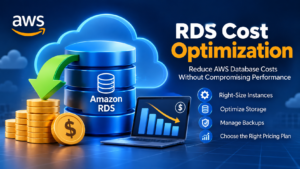
RDS cost optimization is the practice of lowering Amazon RDS spend without hurting reliability or performance. It covers instance size, deployment type, storage and IOPS, backups, engine versions, and purchase options such as Reserved Instances, so you pay only for the database capacity your workloads need.
It is a different job from tuning a slow query, although the two overlap. Query tuning makes a database faster. Cost optimization makes the same database cheaper to run. Often, one helps the other: a well tuned database can run on a smaller instance.
What Makes Up an RDS Bill
An RDS invoice has several meters running at once. AWS describes them on its Amazon RDS pricing page.
| Cost component | What you pay for | Where waste hides |
| DB instance hours | The instance class, running time, engine, and deployment type | Oversized or idle instances, Multi-AZ on test databases |
| Storage | Provisioned GB per month | Volumes sized for growth that never came |
| IOPS and throughput | Provisioned IOPS, or performance above the storage baseline | Provisioned IOPS that the workload never uses |
| Backup storage | Automated backups and manual snapshots beyond the free allowance | Long retention and forgotten snapshots |
| Data transfer | Traffic out to the internet, across Regions, and across zones | Apps and databases in different zones |
| Extended Support | A per vCPU hourly fee for old engine versions | Databases left on retired versions |
| Licensing | License included editions for engines such as SQL Server and Oracle | Paying for license features you do not use |
The instance is usually the largest line. Storage, backups, and surprise fees decide how large the rest of the bill becomes.
Where RDS Waste Comes From
Some patterns appear again and again:
- Idle instances. Databases from old projects, demos, or migrations that nobody uses.
- Oversized instances. A large class picked “to be safe” and never revisited.
- Always-on non-production. Development and staging databases that run around the clock.
- Multi-AZ everywhere. A standby copy on databases that do not need high availability.
- Excess storage and IOPS. Capacity bought for a peak that never arrived.
- Backup sprawl. Long retention periods and manual snapshots that were never deleted.
- Old engine versions. Databases that quietly entered paid Extended Support.
- On-Demand pricing for steady load. Paying the flexible rate for databases that run all year.
- Unused read replicas. Each replica is billed like another instance.
Backups and Data Transfer Basics
Backup storage is free up to 100% of your provisioned database storage in a Region, according to AWS’s RDS pricing details. Beyond that, you pay per GB per month. Longer retention, large write volumes, and manual snapshots all push you past the free allowance.
For data transfer, AWS says traffic into RDS from the internet is free, and it includes 100 GB a month of free data transfer out to the internet, aggregated across AWS services. Charges apply for traffic out beyond that allowance, across Regions, and across Availability Zones. AWS’s global network FAQ notes that data moving in and out of RDS, EC2, and other services across zones in the same Region is charged.
Multi-AZ and Read Replicas
A Multi-AZ deployment keeps a standby copy in another Availability Zone, so a failure does not take your database down. It is also billed as a second set of resources, so it roughly doubles instance cost. Standard replication traffic between the primary and the standby is not charged.
Read replicas are billed as separate DB instances too. They are useful when reads outgrow a single database, and expensive when they sit idle. Cross-Region replicas add inter-Region transfer charges.
Neither Multi-AZ nor replicas is waste by default. They protect availability and performance. They become waste when the database they protect does not need that protection.
Purchase Options at a Glance
You can pay for RDS in three main ways:
- On-Demand. Pay by the hour with no commitment. It suits new, short, or unpredictable workloads.
- Reserved Instances. Commit to a configuration for one or three years. AWS says savings can reach up to 69% over On-Demand rates for steady state use.
- Database Savings Plans. Commit to an hourly spend for one year across eligible database services, with more flexibility than reservations.
The tactics section explains how to choose between them.
How to Find Idle, Oversized, and Unused RDS Instances
You cannot fix what you cannot see. Start by building a picture of where your database money goes, then look for the instances doing the least work. Follow these steps.
- Inventory every database. List all RDS and Aurora instances across accounts and Regions, with their engine, class, deployment type, storage, and owner tags.
- Open Cost Explorer. In AWS Cost Explorer, filter to Amazon Relational Database Service, then group by usage type, instance type, Region, and tag.
- Turn on Compute Optimizer. AWS Compute Optimizer generates recommendations for RDS for MySQL, RDS for PostgreSQL, and Aurora databases.
- Read the CloudWatch metrics. Check CPU, connections, free memory, free storage, and read and write IOPS over at least two to four weeks.
- Check Trusted Advisor. AWS Trusted Advisor includes cost optimization checks, among them one for idle database instances.
- Review backups and snapshots. Look at retention settings and list manual snapshots by age and size.
- Check engine versions. Identify databases on versions that are in or near Extended Support.
- Confirm with owners. Ask the people who own each database before you change anything.
What Compute Optimizer Tells You
According to AWS’s documentation, Compute Optimizer produces separate recommendations for DB instances and for storage. Findings fall into three groups:
| Finding | What it means | Typical action |
| Over-provisioned | The instance or storage has more resources than the workload uses | Test a smaller class or less storage or IOPS |
| Under-provisioned | Resources are too small, which can hurt performance | Increase capacity, and treat the extra cost as justified |
| Optimized | Specifications fit the workload | Consider a newer generation or engine version if offered |
The tool also marks instances it considers idle. AWS says recommendations refresh daily, and that Compute Optimizer needs at least 30 hours of CloudWatch metrics before it can generate RDS recommendations. For Aurora, it can also point out potential savings from switching to Aurora I/O-Optimized storage.
You can pull the findings with the CLI:
aws compute-optimizer get-rds-database-recommendations \
–region us-east-1
Check the CLI reference for current filters and options.
Use Cost Explorer to See the Pattern
Group RDS costs by usage type to separate the meters. You will usually see instance usage, storage, backup storage, and data transfer as distinct lines. If you run older engine versions, Extended Support appears as its own usage type, so it is easy to spot once you know to look.
Then group by tag or account. This tells you which team or environment generates the cost, and it turns a vague bill into a list of owners to talk to.
Read Metrics the Right Way
Metrics can mislead if you glance at them once. Keep these habits:
- Use enough history. Two weeks catches daily patterns. A month catches billing cycles and reporting jobs.
- Look at peaks, not just averages. A database that averages 5% CPU may still spike during a nightly job.
- Check memory. A database with low CPU but little free memory is not oversized.
- Check connections. Near zero connections for weeks is a strong sign the database is unused.
- Check storage and IOPS. Large free storage and unused provisioned IOPS point to over-buying.
A database that looks idle for a quarter may still serve a yearly report. That is why ownership checks come before deletion.
Tag Everything for Ownership
A short tagging policy makes cleanup safe: owner, environment, application, and expiry date for temporary databases. Activate cost allocation tags so Cost Explorer can group by them. Without tags, nobody wants to delete an unknown database. With tags, cleanup becomes a ten minute conversation.
A Safe Order for Retiring an Unused Database
- Confirm with the owner that the database is not needed.
- Take a final manual snapshot, and note its retention.
- Stop the instance if the engine supports it, and watch for complaints.
- Delete the instance after a quiet period.
- Delete leftover snapshots you no longer need, and set the final snapshot to expire.
Stopping is reversible. Deleting is not, so give yourself a window to change your mind.
RDS Cost Optimization Best Practices
Once you know what is idle and oversized, work through these practices. Start with the low risk ones, and leave the commitments for last.
1. Right Size Your DB Instances
Right sizing means matching the instance class to what the database actually uses. Compute Optimizer flags over-provisioned instances and recommends alternatives. Treat its output as a starting point, then test.
- Change one database at a time, starting with non-production.
- Step down one size within the same family before you change families.
- Watch CPU, memory, connections, and application latency for a week afterward.
- Plan the change for a maintenance window, since changing the instance class can cause a short interruption.
Keep your rollback plan simple: a recent snapshot and a note of the old class.
2. Move to a Current Generation and Graviton
Newer instance generations usually cost less for the same or better performance. AWS says its Graviton2 based database instances provide up to 52% better price performance than comparable x86 instances for RDS for MySQL, MariaDB, and PostgreSQL, depending on engine, version, and workload. You can read the details in AWS’s announcement.
Graviton uses Arm processors, so check that your engine version and any extensions support them. Test in staging first, and compare real performance rather than relying on a benchmark.
3. Reconsider Multi-AZ for Non-Production
Multi-AZ protects production databases from a zone failure. Development, test, and demo databases rarely need that protection. Moving them to Single-AZ roughly halves their instance cost. Keep Multi-AZ where an outage would cost you more than the standby does.
4. Stop Non-Production Databases When Not in Use
AWS lets you stop an RDS DB instance temporarily for up to seven consecutive days. While it is stopped, you are not charged for DB instance hours. You still pay for storage, including provisioned IOPS, and for backup storage. If the instance is publicly accessible, the public IPv4 address charge continues.
There are limits to know:
- RDS automatically starts a stopped instance after seven days, so schedule restarts rather than relying on one stop.
- Some configurations cannot be stopped. For example, AWS says you cannot stop an RDS for SQL Server DB instance.
- Stopping a production instance can affect availability, so use it for development and test.
Here is a hypothetical example. A database costs $0.20 an hour. Running all 168 hours of a week costs $33.60. Running only 50 working hours costs $10. That is a 70% reduction for the compute portion, without touching the data. Tools such as Instance Scheduler on AWS can automate the schedule.
5. Choose Storage and IOPS Carefully
Storage is easy to over-buy. AWS offers three RDS storage types: General Purpose SSD (gp2 and gp3), Provisioned IOPS SSD (io1 and io2 Block Express), and legacy magnetic. See AWS’s RDS storage documentation for details.
- Use gp3 for most workloads. AWS says gp3 on RDS includes a baseline of 3,000 IOPS and 125 MiBps, so many databases need no extra IOPS.
- Do not provision IOPS you never use. Compute Optimizer can flag storage with excess IOPS or throughput.
- Move off io1 where it makes sense. AWS says io1 and io2 Block Express are billed at the same rate, and io2 Block Express is its recommended Provisioned IOPS type for demanding workloads. But if your workload does not need Provisioned IOPS at all, gp3 is cheaper.
- Treat storage as a one way street. In general, RDS does not let you shrink allocated storage in place, so right size at creation. Reducing it later usually means building a new database and migrating.
Storage autoscaling can protect you from running out of space. Set a sensible maximum, because autoscaling grows storage and does not give it back.
6. Trim Backup Costs
AWS includes backup storage up to 100% of your provisioned database storage. Beyond that, you pay per GB per month. To stay near the free allowance:
- Set retention to what recovery requirements truly need, and use shorter periods for non-production.
- Delete old manual snapshots. They persist until you remove them.
- Review snapshot copies in other Regions, since they add storage and transfer costs.
- Use a lifecycle process, such as AWS Backup policies, so retention is enforced, not remembered.
7. Pick the Right Purchase Option
After you have trimmed waste, commit to the baseline you are sure about. AWS describes RDS Reserved Instances with one or three year terms and three payment options: All Upfront, Partial Upfront, and No Upfront. AWS says savings can reach up to 69% over On-Demand rates for steady state use.
AWS’s documentation says size-flexible reservations are available for RDS for MariaDB, MySQL, PostgreSQL, Db2, and Oracle with Bring Your Own License. They do not apply to RDS for SQL Server or Oracle with License Included. See the reserved DB instances guide.
In late 2025, AWS also introduced Database Savings Plans. They are a one year commitment measured in dollars per hour that apply across eligible database services, and they follow you if you change engine, instance size, deployment type, or Region. AWS’s announcement lists savings of up to 35% for eligible serverless usage, and up to 20% for eligible provisioned instances. Eligibility rules apply, such as newer instance generations, so check them first.
| Option | Commitment | AWS stated savings | Flexibility | Best for |
| On-Demand | None | None | Full | New or unpredictable databases |
| Reserved Instances | 1 or 3 years on a configuration | Up to 69% | Limited, with size flexibility for some engines | Stable databases you expect to keep |
| Database Savings Plans | 1 year, in dollars per hour | Up to 20% provisioned, up to 35% serverless | High, across engines and Regions | Changing environments |
Buy commitments last. Right size first, then commit to what remains, or you lock in waste.
8. Avoid RDS Extended Support Charges
When a major engine version reaches the end of RDS standard support, AWS can enroll it in RDS Extended Support, which keeps the version supported for an additional fee. The fee is priced per vCPU per hour, on top of your normal instance cost. AWS says you can avoid it by upgrading before standard support ends.
AWS’s published example for RDS for MySQL 5.7 in US East is $0.10 per vCPU-hour in the first two years, rising to $0.20 in year three. For a 4 vCPU instance running 730 hours a month, that is about $292 a month in years one and two, and about $584 in year three, before anything else on the bill.
To stay ahead of it:
- Check the version calendar in the RDS user guide for your engines.
- Look for Extended Support usage types in Cost Explorer.
- Plan major version upgrades early, and test them with a copy of production. Blue/green deployments can reduce risk.
- Remember that engine versions keep retiring. For example, AWS’s calendar lists RDS for MySQL 8.0 end of standard support on July 31, 2026, so check where your fleet stands today.
9. Consider Aurora Features Where They Fit
Aurora has cost levers of its own. Aurora Serverless v2 adjusts capacity to demand and suits variable workloads, and Database Savings Plans can cover eligible serverless usage. Compute Optimizer can also flag when Aurora I/O-Optimized storage would save money for I/O heavy clusters. Price the options before you migrate, since Aurora is not always cheaper than RDS.
10. Cut Data Transfer Costs
Data that crosses Availability Zones or Regions is charged. Keep applications and databases in the same zone where your resilience goals allow it, avoid sending large result sets over the public internet, and review cross-Region replicas and snapshot copies. AWS’s data transfer overview explains the main patterns.
Worked Example: How the Savings Stack
This hypothetical example shows how the steps combine. Imagine a company with $6,000 a month in RDS spend: $4,400 for production, $800 for Multi-AZ non-production databases, and $800 for idle instances.
| Step | What changes | Monthly spend |
| Starting point | Everything as is | $6,000 |
| Delete idle instances | Remove $800 | $5,200 |
| Non-production to Single-AZ | Cuts $800 to $400 | $4,800 |
| Schedule non-production | $400 runs 50 of 168 hours | About $4,520 |
| Right size production | Reduce $4,400 by 15% | About $3,860 |
| Commit on production | Hypothetical 30% discount on $3,740 | About $2,738 |
The total reduction is about $3,262 a month, or roughly 54%. The 30% commitment discount is an assumption, below AWS’s stated maximums, and real results will differ. What matters is the order: remove waste, shrink, schedule, and commit last.
A Step by Step Plan for RDS Cost Optimization
Use this order. Each step makes the next one safer.
- Get visibility. Enable Cost Explorer, activate cost allocation tags, and set an AWS Budgets alert for RDS.
- Turn on Compute Optimizer. Let it gather metrics, and review its RDS findings for instances and storage.
- Retire idle databases. Confirm with owners, snapshot, stop, then delete.
- Clean up backups. Shorten retention where recovery goals allow, and delete old manual snapshots.
- Fix non-production. Move to Single-AZ, use smaller classes, and stop databases outside working hours.
- Right size production. Apply recommendations gradually, and watch performance.
- Upgrade engines and instance generations. Avoid Extended Support, and test Graviton.
- Commit last. Buy Reserved Instances or Database Savings Plans for the baseline that remains, and review monthly.
Which RDS Savings Tactic Should You Try First?
| Tactic | Targets | Effort | Risk |
| Delete idle databases | Instance and storage cost | Low | Low, with owner checks |
| Remove old snapshots | Backup storage | Low | Low |
| Single-AZ for non-production | Instance cost | Low | Low |
| Stop non-production databases | Instance hours | Low to medium | Low |
| Upgrade old engine versions | Extended Support fees | Medium | Medium |
| Right size instances | Instance cost | Medium | Medium |
| Trim IOPS and storage type | Storage and IOPS cost | Medium | Medium |
| Move to Graviton | Instance cost | Medium | Medium |
| Reserved Instances or Savings Plans | Steady baseline | Low | Financial |
The first four rows are quick wins that rarely affect users. Start there.
Keep Your Savings: A Monthly Routine
Optimization fades unless someone keeps watch. A light routine is enough:
- Review Cost Explorer monthly. Group RDS costs by usage type and tag, and look for new lines.
- Set alerts. Use AWS Budgets and Cost Anomaly Detection to catch sudden jumps.
- Check Compute Optimizer. New findings appear as workloads change.
- Track coverage. If you hold commitments, check that your usage still matches them.
- Watch the version calendar. Plan upgrades before standard support ends.
- Review ownership. Remove or reassign databases whose owners have left.
AWS’s Well-Architected Cost Optimization pillar describes this kind of ongoing practice in more detail.
Common RDS Cost Optimization Mistakes
- Committing before cleaning. Reservations on oversized or idle databases lock in waste.
- Right sizing on averages. Check peak CPU, memory, and connections before you shrink.
- Cutting Multi-AZ on production. The savings are not worth an avoidable outage.
- Over-buying storage. RDS storage generally cannot be shrunk in place.
- Ignoring backup retention. Snapshots quietly pile up past the free allowance.
- Letting engine versions age. Extended Support fees grow each year.
- Skipping tags. Without owners, cleanup stalls and waste returns.
- Optimizing once. Databases drift, so the review must repeat.
One honest limit applies. Prices, discounts, and version dates differ by Region and engine, and AWS updates them. Confirm current numbers on AWS’s pricing pages, and test changes outside production first.
Decision Guide: Where Should You Start?
- Your bill has many unknown databases: start with tags, Cost Explorer, and an inventory.
- You suspect idle databases: check Compute Optimizer, Trusted Advisor, and connection metrics.
- Development and test cost a lot: use Single-AZ, smaller classes, and stop schedules.
- Your backup line keeps growing: review retention and manual snapshots.
- You run old MySQL or PostgreSQL versions: plan upgrades to avoid Extended Support.
- Your production databases are steady: model Reserved Instances or Database Savings Plans.
- Your workload changes often: compare Database Savings Plans and Aurora Serverless v2.
Practical Examples
These scenarios are illustrative, not real customer cases.
The forgotten database. A team finds three instances with almost no connections for a month. Their owners confirm the projects ended. The team snapshots each database, stops it, and deletes it two weeks later.
The expensive staging environment. A staging database runs Multi-AZ around the clock on a large class. The team moves it to Single-AZ on a smaller class and stops it on nights and weekends.
The surprise surcharge. A line called Extended Support appears in Cost Explorer. The team learns that two databases run a retired engine version. They schedule upgrades, test them on a copy, and the charge disappears after cutover.
Conclusion
RDS cost optimization works best as a sequence. Find idle and oversized databases, clean up storage and backups, trim non-production, upgrade engines before Extended Support applies, and only then commit to Reserved Instances or Database Savings Plans. Keep the savings with tags, alerts, and a monthly review.
Start this week by grouping last month’s RDS bill by usage type in Cost Explorer and turning on Compute Optimizer. Those two steps will show you where the first savings are hiding.